AudioLab: an audio workstation inside SwarmUI
Tool

AudioLab: an audio workstation inside SwarmUI

Hartsy
comments, jump to the thread 81 views

Installation

git clone https://github.com/HartsyAI/SwarmUI-AudioLab.git

Features

  • 38 local engines, 79 models
  • No Python, no virtual environment, no Docker
  • Per model install and remove
  • Multi track DAW with mixer, FX and stems
  • Always on wake word listener
  • Audio models appear in the normal Generate tab
  • Streaming speech that plays while it generates

System requirements

GPU
CUDA or Vulkan recommended; Kokoro, Piper, Pocket TTS and Moonshine run on CPU
ffmpeg
On your PATH, for audio and video encode and decode
SwarmUI
Installed and working
Weights
Stored under <ModelRoot>/audio

Links

License

License
MIT
The Audio Lab multi track editor.

AudioLab turns SwarmUI into a full audio workstation: text to speech, speech to text, music and sound effect generation, voice conversion, stem separation, an always on wake word listener, and a multi track DAW for arranging what you generate.

Everything runs in process as pure C# on the HartsyInference engine, which ships with the extension as a NuGet dependency. There is no Python, no virtual environment and no Docker, and nothing to install beyond the extension itself.

Highlights

38 local engines, 79 models 20 text to speech, 6 speech to text, 7 music and sound effect, 3 voice conversion, 2 audio processing
No Python Models load and run inside the SwarmUI process on the HartsyInference C# engine
Install only what you want Per model Install and Remove, with Download All for multi variant engines
Multi track DAW Timeline, mixer, effect chains, stem separation, drum machine, in place generation, saved sessions
Wake word listener Voice satellites stream microphone audio in; detections are published on a WebSocket other extensions can subscribe to
Works like any Swarm model Pick an audio model in the Generate tab, type a prompt, and the result lands in your output history
Streaming speech Chunked text to speech plays back while it is still generating

Installing

AudioLab is not on SwarmUI's built in extension list yet, so clone it into SwarmUI/src/Extensions/ by hand and rebuild. Restarting alone is not enough, because extensions are compiled: run the update script in the Swarm root, or launch with a launch-dev script, which rebuilds every time.

After the restart, open Server > Backends, press Audio Backend, and save. The backend registers itself with no engines installed. You add those next.

Audio weights are stored under your Swarm model root, in <ModelRoot>/audio. There is no separate path setting to keep in sync.

Quick start

  1. Go to Server > Backends and expand the Audio Backend card.
  2. Open a category, for example Text-to-Speech, and press Install on an engine. Kokoro TTS is a good first pick: about 200MB, roughly 1GB of VRAM, and fast enough to be pleasant.
  3. Switch to the Generate tab and select the model, for example Audio Models/Kokoro/default.
  4. Type what you want spoken into the prompt box and press Generate.

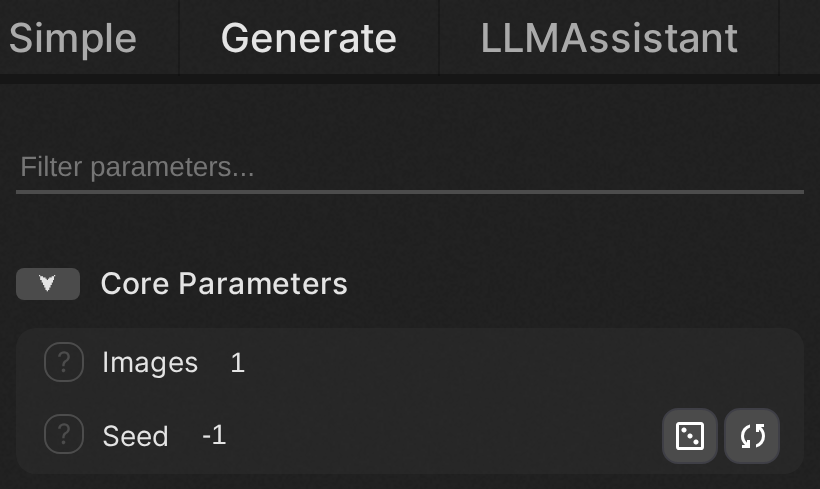
The result is a WAV in your normal output history, with the same metadata, sharing and history behaviour as an image. Audio specific parameters appear automatically for whichever model you selected.

Audio parameters in the Generate tab

The Audio Backend

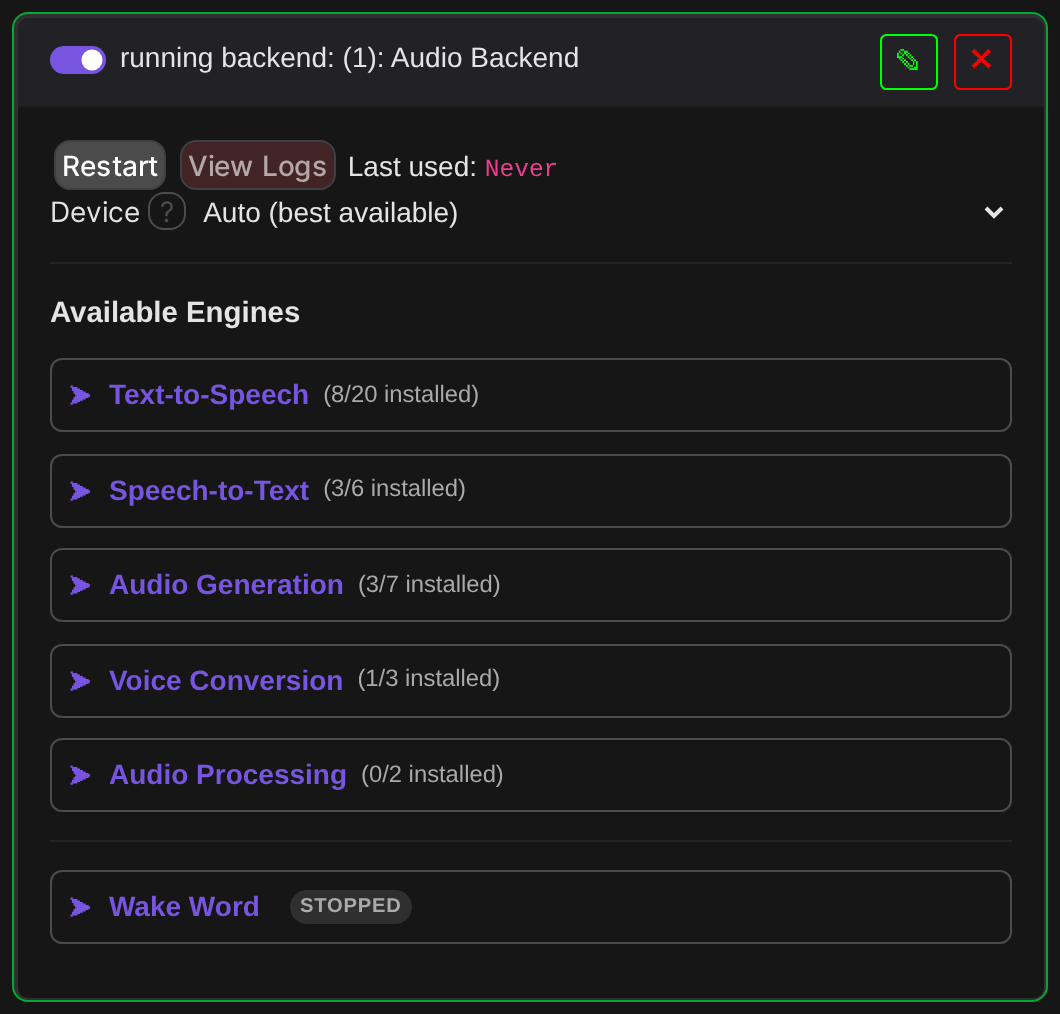
The Audio Backend card

AudioLab adds one backend type, Audio Backend. Add a single instance; it routes every audio category.

The card has one setting, Device, listing every compute backend the engine supports on your machine with one entry per GPU. The list is built from the engine itself, so a backend it gains later appears here automatically. GPU numbering is the engine's own enumeration, which is fastest first for CUDA and need not match the order nvidia-smi prints. Software rasterizers are labelled as such so you do not pick one by accident.

Audio shares a single engine instance for the whole process, so Device is not really a per backend choice. Run one audio backend, and restart SwarmUI to change devices once audio has run.

Installing engines

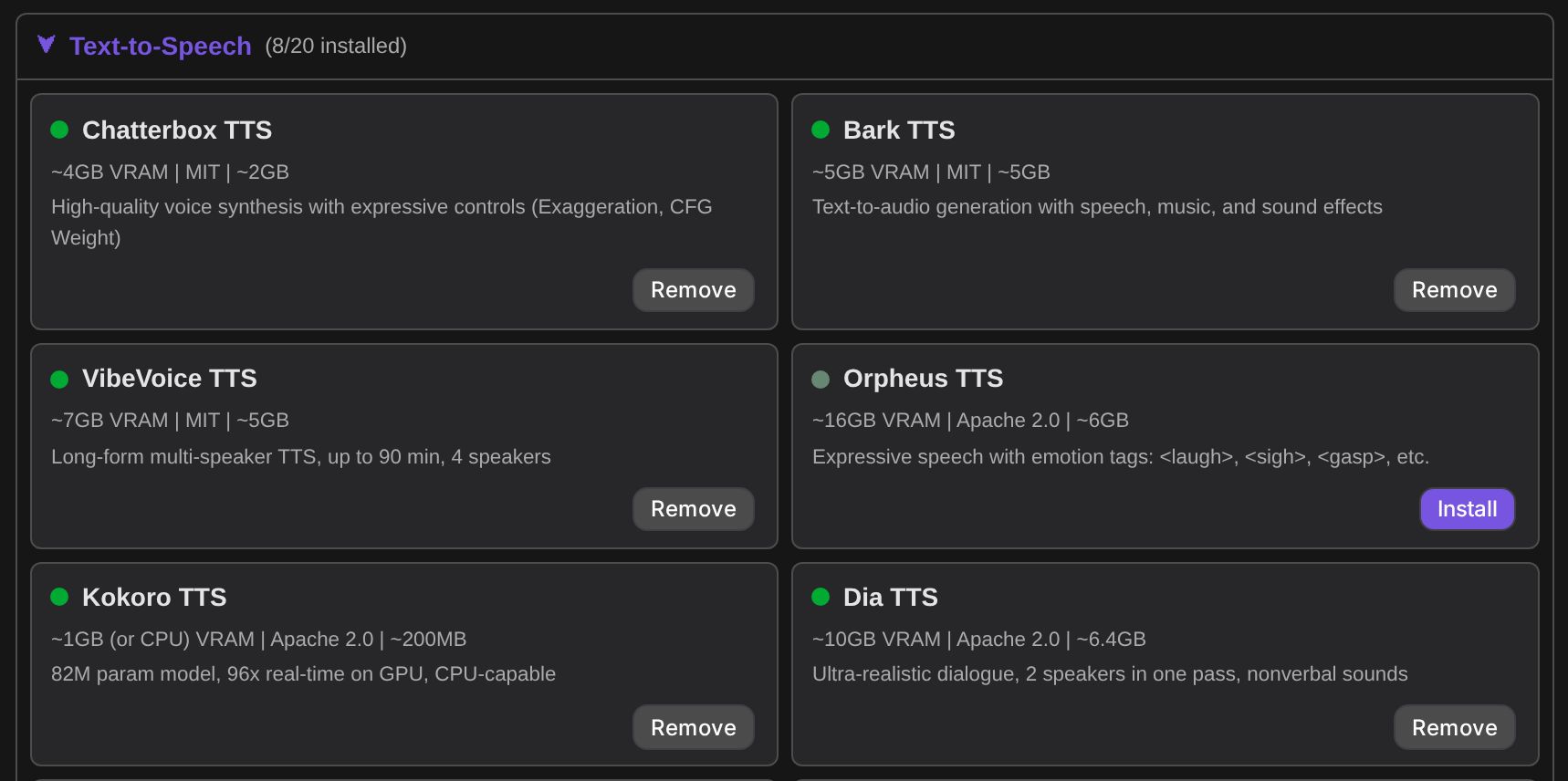
Expanding a category lists its engines with VRAM, license, download size, and a status dot: green for installed, grey for available. Nothing is fetched until you ask for it, so a fresh install carries the whole catalog and none of the weights.

The engine manager, with VRAM, license and download size per engine.

Most engines fetch their weights on first use, which is the simple case: press Install, generate, and the download happens once.

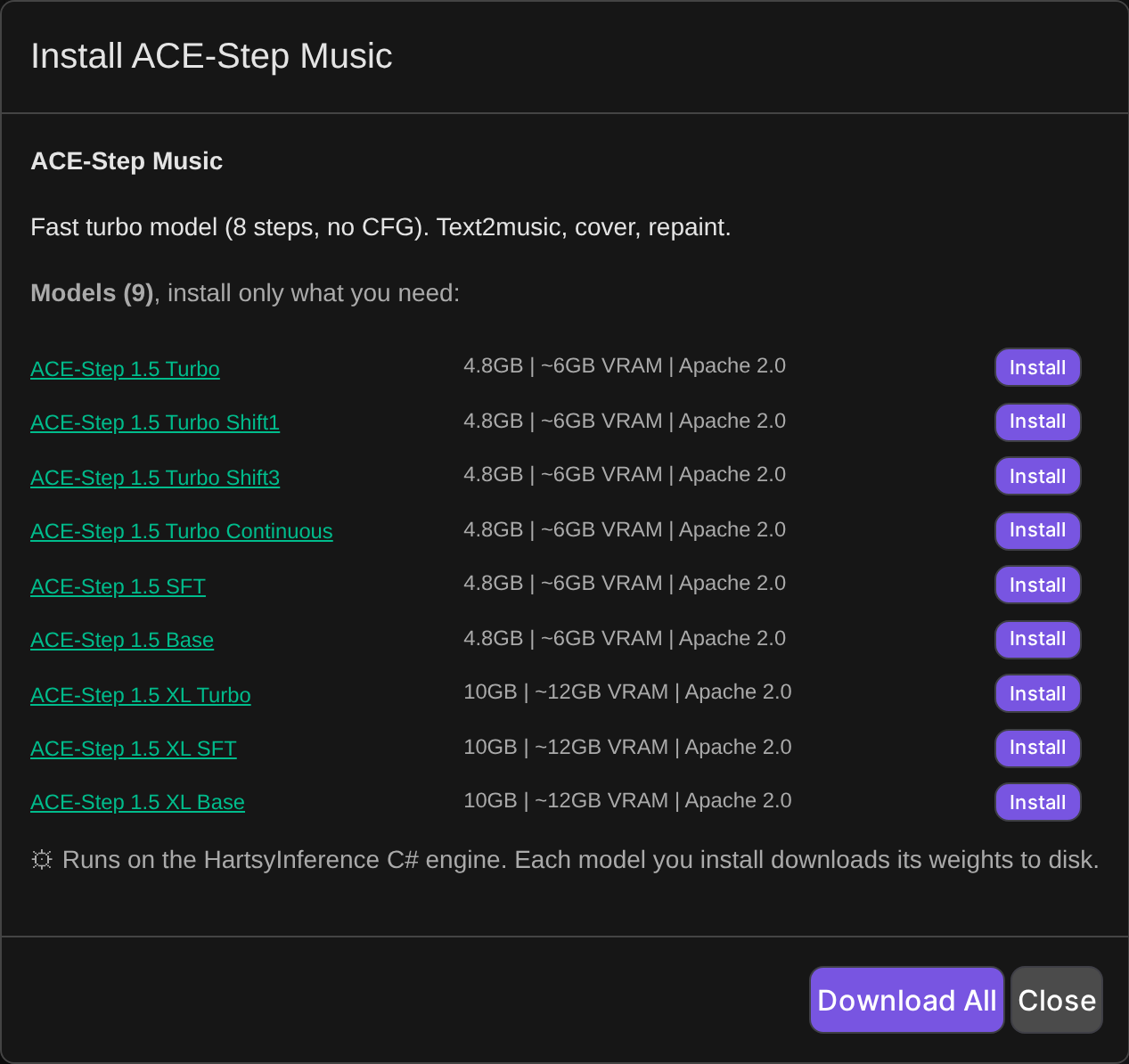
Engines that ship several discrete checkpoints work differently. They open a per model table with its own Install and Remove button on each row, plus Download All and Remove All for the whole family, so you can take just the variant you want instead of every one. ACE-Step, for example, has nine, and there is no reason to pull all nine to try the turbo model.

Removing a model deletes its weights, and AudioLab notices if they disappear some other way: the engine resets to not installed and tells you rather than failing at generation time.

Per model install

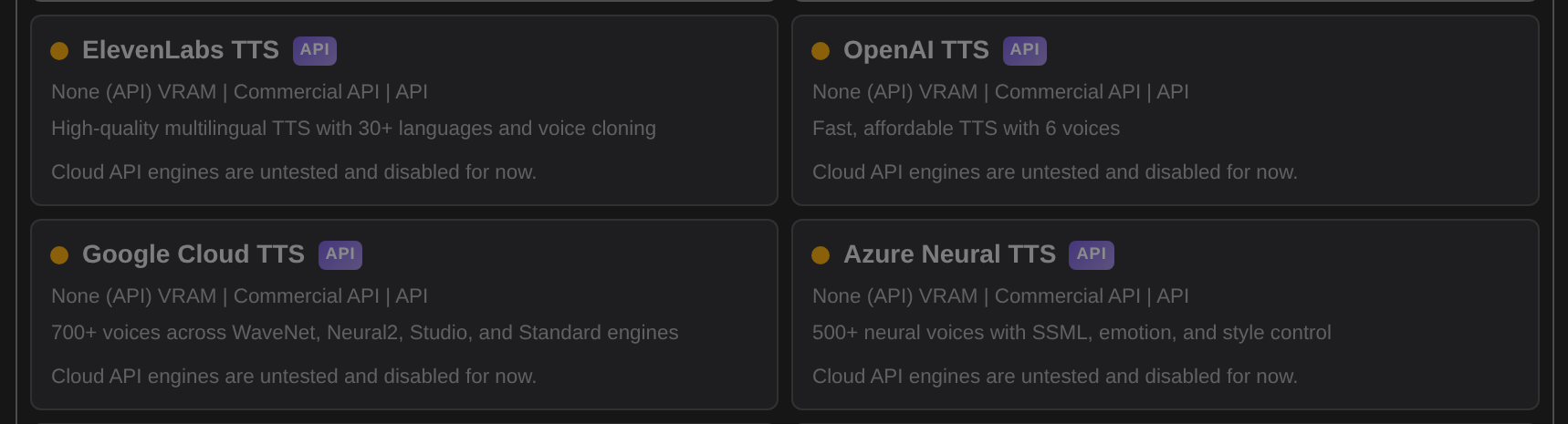
Cloud API engines are currently disabled

AudioLab also carries definitions for 20 cloud providers, ElevenLabs, OpenAI, Google, Azure, Polly, Deepgram, Cartesia, Play.ht, Suno, Udio, AssemblyAI and Dolby.io among them. None of them are currently tested, so all of them are disabled. They appear greyed out, cannot be installed, and the server refuses install requests for them. RealtimeSTT is disabled for a different reason: it has no C# engine implementation yet.

Cloud API engines are visible but disabled.

Engines and models

The engine list is generated from the running server, so it reflects what the extension actually offers.

  • Text to speech, 20 engines and 25 models: Bark, Chatterbox, CosyVoice, CSM Conversational, Dia, F5-TTS, Fish Speech, Kokoro, Kyutai, MeloTTS, NeuTTS Air, Orpheus, Piper, Pocket TTS, Qwen3 TTS, Spark-TTS, StyleTTS 2, VibeVoice, ZipVoice and Zonos.
  • Speech to text, 6 engines and 17 models: Whisper, Distil-Whisper, Whisper Streaming, Kyutai STT, Moonshine and Moonshine Streaming.
  • Audio generation, 7 engines and 30 models: ACE-Step, AudioGen SFX, HeartLib Music, MiniMax Music 3, MusicGen, Stable Audio Open Small and YuE.
  • Voice conversion, 3 engines: GPT-SoVITS, OpenVoice V2 and RVC.
  • Audio processing, 2 engines: Demucs separation and Resemble Enhance.

Each model carries its own upstream license, shown on its card in the engine manager. Several are non commercial, F5-TTS and Fish Speech among them, so check before shipping anything built with them.

Verified, and measured

Models are tested end to end through the SwarmUI API rather than in isolation: generate, decode the returned WAV, and for speech run a Whisper round trip to compare the transcript against the input text.

Speech to text is uniformly solid. Most text to speech engines work and are word correct, including Kokoro, Chatterbox, Fish Speech, Kyutai, Pocket TTS, Spark-TTS, StyleTTS 2 and Dia. A few have caveats worth knowing: Bark sounds staticy, F5-TTS is correct but slow, VibeVoice destabilizes on short prompts, and NeuTTS can append a garbled tail. Piper, Zonos, MeloTTS and CosyVoice refuse cleanly with a specific reason, waiting on engine side front end pieces.

A sample of recorded figures on an RTX 3060 12GB, warm. RTF is generated audio seconds per wall second, so above 1.0 is faster than real time.

Model Type RTF (warm)
Moonshine tiny STT 12.7x
Whisper turbo STT 5.1x
Kokoro TTS 4.3x
Whisper large-v3 STT 3.8x
ACE-Step 1.5 turbo Music 1.33x
Qwen3 TTS 0.6B TTS 1.06x
Fish Speech 1.5 TTS 0.81x
Chatterbox TTS 0.50x

The small speech models are launch bound rather than compute bound, so a faster GPU moves them very little.

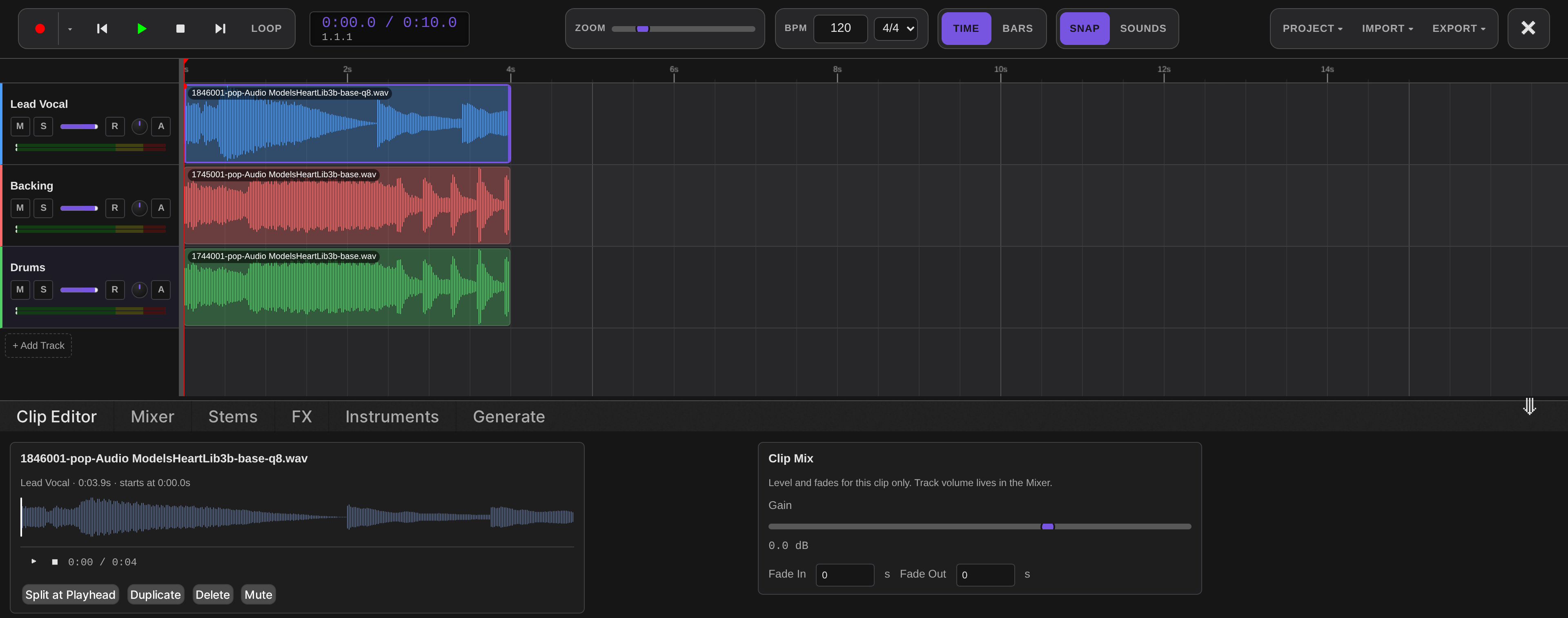
The Audio Lab DAW

The Audio Lab tab is a multi track editor built around what you generate. Open it from the top tab bar, or from the Audio Lab button on any audio result.

The transport strip carries record, play, stop, loop, a time or bars ruler, zoom, BPM and time signature, snap, and the Project, Import and Export menus. Tracks have mute, solo, volume, pan, arm and a level meter. Clips drag along the timeline, snap to the grid, and can be split, duplicated, muted or deleted.

Sessions

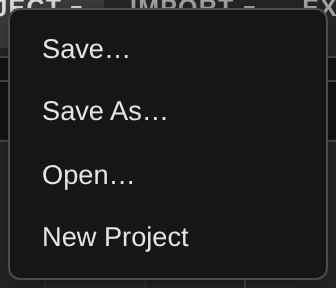
DAW work is saved three ways, and they are independent. Autosave continuously writes the current arrangement to browser IndexedDB, audio included, so a crashed tab does not lose work. Local quick saves are named slots in the same store, for fast checkpoints on one machine. Server side projects store named projects against your SwarmUI user account through the AudioLabSaveProject API, so they follow you between browsers and machines.

The Project menu

Clip editor and mixer

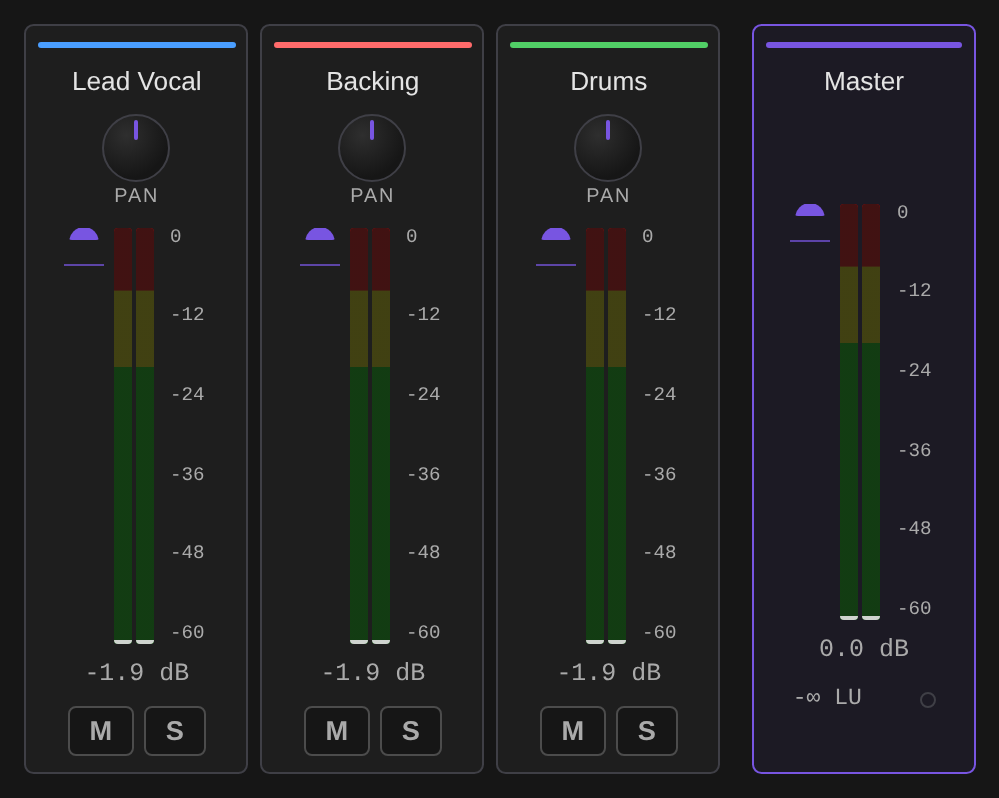
The mixer

Per clip gain, fade in and fade out, a waveform preview with its own transport, and Split at Playhead, Duplicate, Delete and Mute. Track level volume stays in the Mixer, so clip gain and track gain do not fight each other. The mixer itself is one strip per track plus a master strip, each with pan, fader, level meter, mute and solo.

FX

Per track effect chains built on the Web Audio API, so they are live and non destructive: EQ, compressor, reverb, delay and saturation. Effects can be bypassed individually, reordered or removed, and a chain can be saved and loaded by name. There is a master limiter on the output.

An effect chain on a track.

Stems

Demucs source separation with presets for the common jobs: Full Split, Karaoke, Acapella, Instrumental, or Custom to pick exactly which stems you keep. Each stem chosen becomes a new track in the arrangement.

Stem separation, each stem landing as its own track.

Instruments

A 16 or 32 step drum machine with per lane gain, swing, audition and Render to Track. Pads come from a generated one shot, an imported sample, or the currently selected clip. Piano roll, bass and synth appear as slots in the instrument browser and are not built yet.

The drum machine.
The drum machine.

Generate and export

Generate straight into the arrangement without leaving the tab. Pick a category, pick one of your installed engines, and the result is added as a new track at the playhead and saved to your outputs like any other generation. Categories are text to speech, music, sound FX and speech to text, and the speech to text category transcribes the selected clip, which is also how the transcript field fills itself.

Export renders the mixdown to WAV, MP3, OGG, FLAC or AAC, or straight back into your SwarmUI outputs.

Generating into the timeline.

Wake word listener

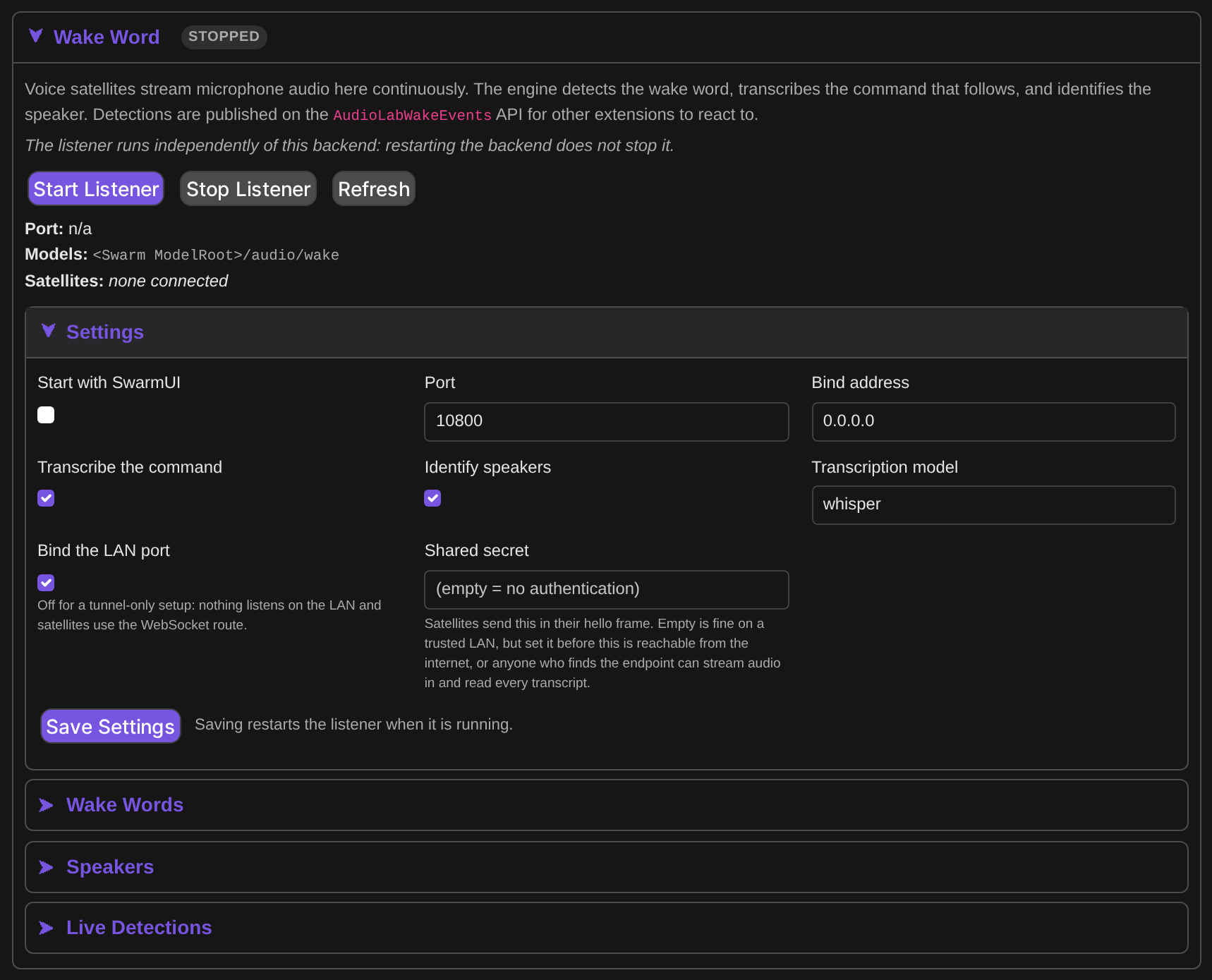
AudioLab can hold an always on wake word listener. Voice satellites keep a connection open and stream microphone audio; the engine scores it for the wake word, transcribes the command that follows, and identifies who spoke.

It is off by default. A SwarmUI install with no voice satellite never binds a port or holds a detection thread. Its UI sits on the backend card, but the listener is not a backend and does not share that lifecycle: restarting or disabling the Audio Backend leaves it running. It holds its own small CPU models, so it neither takes the shared generation lock nor competes for VRAM.

Satellites connect over raw TCP on port 10800 by default, or over a WebSocket through the AudioLabWakeIngest route, which exists because an HTTPS reverse proxy cannot carry raw TCP but does carry WebSockets. Set the shared secret before exposing this beyond a trusted LAN: if it is empty the check is disabled, and anyone who can reach the endpoint could stream audio in and read every detection.

The wake word section on the Audio Backend card

Words, speakers and detections

Train a new wake word from its text in the Wake Words group. Training reports recall, false accept rate, false accepts per hour and a suggested threshold, so you can judge a word before trusting it. Each word carries its own threshold, smoothing window, refractory period, a route tag, and optionally a required speaker.

Detections are published for other extensions, which is the point of the feature. Each carries device_id, word, score, route, transcript, speaker and detected_at. AudioLabWakeEvents is a WebSocket that streams them live, AudioLabWakeRecentDetections returns the recent buffer for consumers that cannot hold a socket open, WakeWordService.Detected is a plain C# event for in process consumers, and configured webhook URLs receive a JSON POST per detection.

API

AudioLab follows SwarmUI's API conventions exactly: routes are POST to (your server)/API/(route) with JSON in and JSON out, every route except GetNewSession needs a session_id, and routes marked WebSocket take a socket and stream progress.

You usually do not need the audio specific endpoints. The canonical path is Swarm's own GenerateText2Image, with the audio model as model and your text as prompt.

curl -s -H "Content-Type: application/json" -X POST http://localhost:7801/API/GenerateText2Image \
  -d '{"session_id":"<ID>","images":1,
       "model":"Audio Models/Kokoro/default",
       "prompt":"As she sells seashells by the seashore."}'

The direct endpoints exist for callers that want base64 audio back instead of a file in history: ProcessTTS, ProcessSTT, ProcessAudio, ProcessWorkflow, ConvertAudioFormat, AudioLabTimeStretch, CombineVideoAudio and ExtractAudioFromVideo. Engine management, DAW projects and the wake word listener each have their own route group, gated by audio_manage_backends, audio_daw_projects, audio_wake_listen and audio_wake_manage.

Troubleshooting

An engine says it is not installed but I installed it

Its weights are not on disk any more, most likely freed manually. AudioLab resets it to not installed and tells you. Reinstall from the backend card.

Changing the Device setting did nothing

The audio engine is built once per process. Restart SwarmUI.

A model refuses with a message about a missing front end

That is an engine side gate, not a bug in your setup. Piper, Zonos, MeloTTS and CosyVoice are wired up and waiting on engine pieces. They light up on their own once those land.

Changes to the extension are not showing up

Extensions are compiled. Restarting SwarmUI is not enough unless you launch with a launch-dev script. Otherwise run the update script.

Out of memory when switching between large models

AudioLab evicts other providers under memory pressure, but host RAM rather than VRAM is usually the limit with multi gigabyte models. Close other heavy processes.

Comments

Your avatar