HartsyInference: a pure C# generation backend for SwarmUI
Tool

HartsyInference: a pure C# generation backend for SwarmUI

Hartsy
comments, jump to the thread 61 views

Supported platforms

  • Windows
  • Linux

Installation

git clone https://github.com/HartsyAI/SwarmUI-HartsyInference-Backend.git

Features

  • One application to start, no second server
  • No Python environment to manage
  • Editing, inpainting, LoRAs, ControlNet and IP-Adapter included
  • Automatic memory handling for models that do not fit
  • Images, video and music in one backend
  • Parallel jobs across GPUs, or one model split across two
  • Live previews, cancellation and readable errors

System requirements

GPU
NVIDIA with a current driver, 12GB VRAM as a starting point, 24GB for a wider choice
Network
Needed for the first build and for model downloads
Storage
A few GB to dozens of GB per model
SwarmUI
Working install on Windows or Linux

Links

License

License
MIT
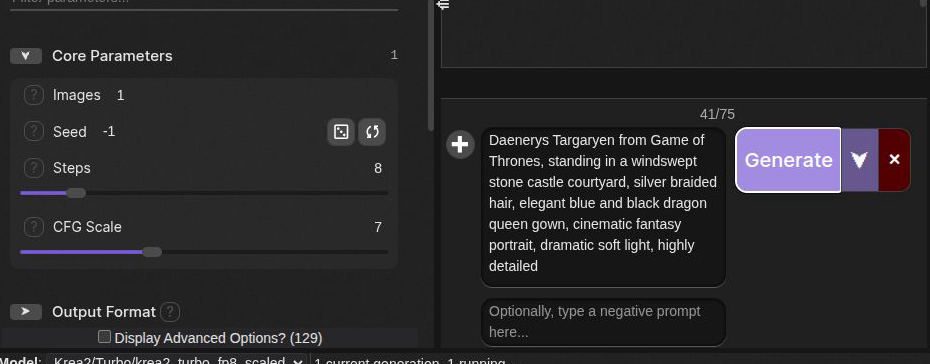
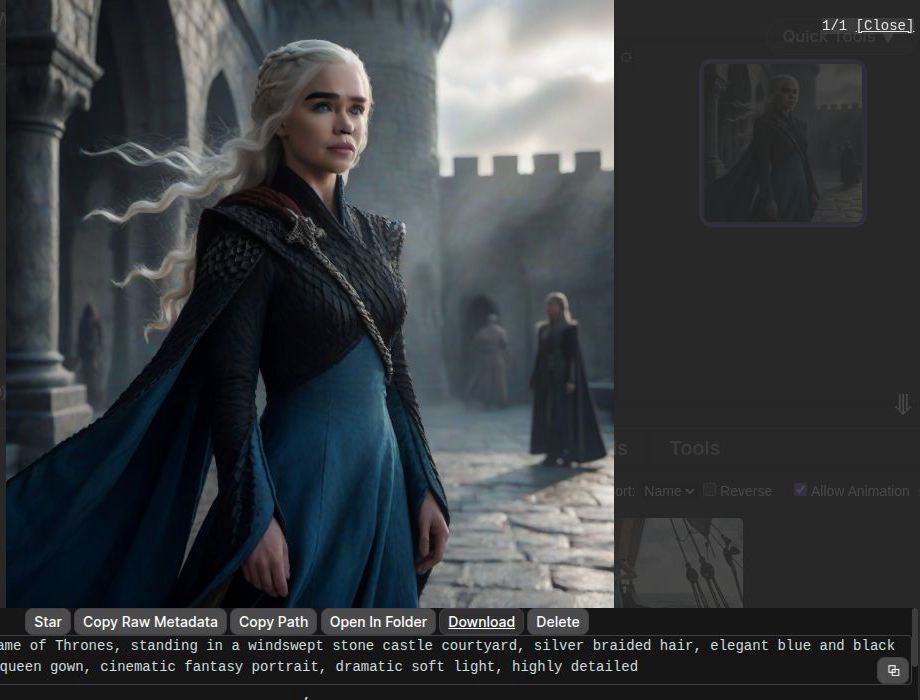
A Dany fantasy portrait generated locally with Krea 2 and HartsyInference.

Generate images, videos and music locally without managing Python, virtual environments, workflow servers or a pile of separate add-ons.

HartsyInference is a fast, all-in-one generation backend that runs inside SwarmUI. You keep the familiar model picker, prompt box, history, previews and generation controls. HartsyInference handles loading the model and creating the result in the same application.

It is in beta. Many model families and advanced tools work today, but exact feature support varies by model.

Why it feels easier

What you get Why it matters
One application to start The generation engine runs inside SwarmUI. There is no second server to launch or keep connected.
No Python environment No virtual environment, package conflicts, or Python version to manage.
Useful features included Editing, inpainting, LoRAs, guided generation, previews, cancellation and memory handling, without collecting separate add-ons.
Automatic memory handling Models can use memory-saving behavior when they do not fit normally. Cards with enough room keep the faster path.
Images, video and music together The same Generate tab and output history across supported model types.
Real multi-GPU support Run separate jobs in parallel or split one supported model across two cards.

Benchmarks

These results use the same request through the SwarmUI API on an RTX 4090. Each number is the warm median of three runs.

Model Size Steps HartsyInference ComfyUI
Z-Image Turbo 1024 x 1024 8 2.95 s 3.1 s
Krea 2 Turbo 1024 x 1024 8 4.50 s 6.5 s
Qwen-Image 20B GGUF 1024 x 1024 20 40.9 s 54.8 s

Hardware, checkpoint format, available memory, drivers and generation settings all change performance. Full test settings and newer results live in the HartsyInference performance guide.

Installing and adding the backend

Install it from Server > Extensions, or clone the repository into SwarmUI/src/Extensions/ by hand. Extensions are compiled, so restarting by itself is not enough: run update-windows.bat or update-linuxmac.sh from the main SwarmUI folder, then start SwarmUI.

HartsyInference ships as a package dependency of this extension. You do not install the engine separately.

To add the backend, open Server > Backends, turn on Show Advanced, select HartsyInference (Pure C# Inference), keep ComputeBackend, GPU_ID and LowVram at their defaults, and save. For a normal one-GPU setup, leave every field ending in GpuId empty.

Your first generation

HartsyInference uses SwarmUI's normal model folders and model picker. Your model root is shown under Server > Server Configuration > Paths > ModelRoot. Place a checkpoint in the matching folder and refresh the model list.

For a straightforward first image, use a supported turbo or schnell checkpoint that fits your GPU. Krea 2 Turbo and Z-Image Turbo are fast choices on higher-memory NVIDIA cards. Some model families need companion files such as a text encoder or VAE; HartsyInference downloads known companions when it can, and SwarmUI shows what is missing when it cannot.

Krea 2 generating through HartsyInference
The finished portrait in SwarmUI's image preview

The finished result appears in the normal SwarmUI history. Select it to view the full image, prompt, settings, seed and generation details, exactly as with any other backend. Nothing about the output path changes: the same metadata, the same sharing, the same history.

While it runs, you keep the controls you would expect. HartsyInference supports live previews, cancellation, variation seeds and early step stopping. If a model cannot use a feature you asked for, the backend says so and names the problem rather than quietly ignoring the setting, which is the difference between a slow run and a run that was never going to do what you wanted.

What you can create

Images. Stable Diffusion 1.5, SDXL, SD3, SD3.5, FLUX.1, FLUX.2, Qwen-Image, Z-Image, Krea 2, Chroma, AuraFlow, Anima, F-Lite, Ideogram 4, HunyuanImage, ERNIE-Image and Boogu.

Editing and repair. Start from an existing image and control how much it changes, paint a mask to replace or repair an area, refine one model's result with another, make seamless images for repeating textures, and use supported reference-image models for instruction-based edits.

Guided composition. Pose, depth, edges, line art, soft edges, scribbles, normals and segmentation maps, plus IP-Adapter variants that carry style, facial features or identity from a reference. Supported ControlNets and LoRAs stack with individual strengths, and each control appears only when the selected model can use it.

Video. Wan 2.x, Wan VACE, Wan Animate, Wan speech-to-video, LTX-Video, LTX-2, HunyuanVideo, Kandinsky 5 and MiniMax H3, with controls for frame count, frame rate, format, image-to-video, reference media, trimming, boomerang playback, audio and SeedVR2 restoration.

Music. ACE-Step checkpoints generate music from the normal Generate tab, with music controls appearing once you choose a compatible model.


Backend settings

Setting Default What it does
ComputeBackend auto Chooses the best available compute option.
GPU_ID 0 Chooses the main GPU.
LowVram auto Saves memory only when the model would not otherwise fit.
OverQueue 1 Lets one request wait behind the active generation.
Previews on Shows progress previews while generating.
AutoUpdate false Keeps engine updates manual.

Use more than one GPU

To run separate jobs at the same time, add one HartsyInference backend per GPU and give each a different GPU_ID. SwarmUI then sends different generations to different cards.

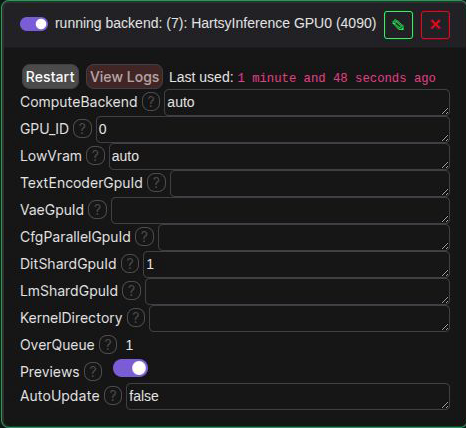
To split one model across two GPUs, a single backend can use a second card for part of the work: TextEncoderGpuId moves prompt processing, VaeGpuId moves image or video encoding and decoding, DitShardGpuId splits a supported image or video model to combine their memory, LmShardGpuId splits a supported language or audio model, and CfgParallelGpuId runs two guidance passes at once when both cards can hold the model.

Sharding is mainly a way to gain memory. It does not always improve speed.

HartsyInference configured to shard a model onto a second GPU

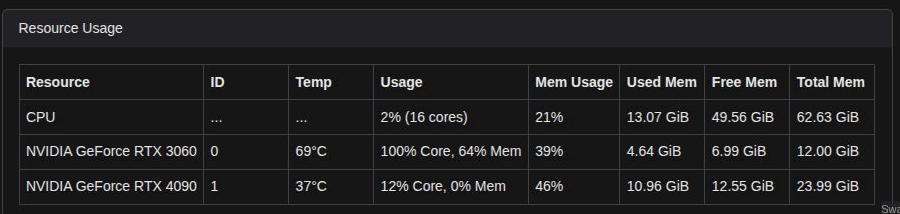
During that job, SwarmUI showed an RTX 4090 and an RTX 3060 both holding model data.

Troubleshooting

The backend type is missing

Turn on Show Advanced under Server > Backends. If it is still missing, rebuild SwarmUI and check Server > Logs for extension build errors.

The backend does not start

Update your NVIDIA driver, keep ComputeBackend set to auto, confirm GPU_ID points to a real GPU, search Server > Logs for HartsyInference, and rebuild SwarmUI after updating the extension or engine package.

A model is missing

Confirm the checkpoint is under the configured SwarmUI model root and in the correct folder, refresh the model list, and make sure you selected the main checkpoint rather than a companion VAE or text encoder.

The model runs out of memory

Keep LowVram set to auto, close other programs using the GPU, try a smaller resolution, fewer video frames or a smaller model version, and use a second GPU for placement or sharding when available.

A control does not appear

Choose the model first. SwarmUI shows controls based on what the selected model supports.

Comments

Your avatar