LLM Assistant: a full LLM workspace inside SwarmUI
Tool

LLM Assistant: a full LLM workspace inside SwarmUI

Hartsy 2.0.0-alpha.2
comments, jump to the thread 61 views

Supported platforms

  • Windows
  • Linux
  • macOS

Installation

git clone https://github.com/HartsyAI/SwarmUI-LLMAssistant.git

Features

  • Server-stored chats with branching and export
  • Side-by-side comparison of two models
  • Agentic tool calling, 13 tools, up to 8 rounds
  • Custom assistants with inheritance and per-model variants
  • Markdown, syntax highlighting, KaTeX and Mermaid, all local
  • Floating in-page companion overlay
  • Generate tab prompt tags

System requirements

Hosted
Each user sets their own API key in the User tab
Backend
At least one LLM backend under Server > Backends
SwarmUI
Tested against 0.9.8.2
Local engine
.gguf weights in Models/llm/, NVIDIA GPU ideally

Links

License

License
MIT
The LLM Assistant tab.

A full LLM workspace inside SwarmUI: persistent chats, custom assistants, agentic tool calling, vision, side-by-side model comparison, a floating in-page companion and deep Generate tab prompt integration.

It ships its own LLM runtimes, so there is nothing else to install: a pure C# local GGUF engine, Anthropic Claude, and any OpenAI-compatible endpoint including OpenAI, Ollama, LM Studio, vLLM and OpenRouter. Pick one under Server > Backends and the tab lights up.

Highlights

  • Real chats, stored on the server. Threads are grouped by date, searchable, renameable, exportable to JSON, Markdown or plain text, and auto-titled from the first exchange. Your message is saved before the model is called, so a disconnect never loses it.
  • Message branching. Edit a message or regenerate a reply and the old version survives as a switchable sibling branch. No destructive edits.
  • Side-by-side comparison. Run the same prompt through two models at once, in parallel, then keep the winner.
  • Agentic tool calling. 13 built-in tools, up to 8 tool rounds per turn, with per-tool permissions, sandboxing, SSRF protection, rate limits and an optional audit log.
  • Custom assistants. Per-mode system prompts, inheritance, per-model prompt variants, parameter overrides, avatars and a per-assistant tool allowlist.
  • Rich rendering. GitHub-flavored Markdown, syntax highlighting, tables, KaTeX math and Mermaid diagrams, all sanitized through DOMPurify and all served locally. No CDN, no outbound requests.

Installing

Clone into SwarmUI's extension folder, then rebuild with update-windows.bat or update-linuxmac.sh from the SwarmUI root. That rebuild is what restores the HartsyInference NuGet package the local engine needs. Restart, and an LLM Assistant tab appears in the main tab strip.

For the local engine, drop GGUF weights into Models/llm/. They show up in SwarmUI's model browser too, because the extension registers LLM as a first-class model type.

Adding a backend

Three LLM backend types appear directly in the "Add new backend" row under Server > Backends.

Backend type What it is
LLM: Local (HartsyInference GGUF) Pure C# GGUF inference. No llama.cpp, no Python, no external process. Reads from Models/llm/.
LLM: Anthropic Claude Anthropic's Messages API on each user's own key. Native tools and tool_choice.
LLM: Remote (OpenAI-Compatible) Any OpenAI-compatible HTTP endpoint. Each user's own key overrides the configured Authorization header.
The three LLM backend types in the add-backend row.

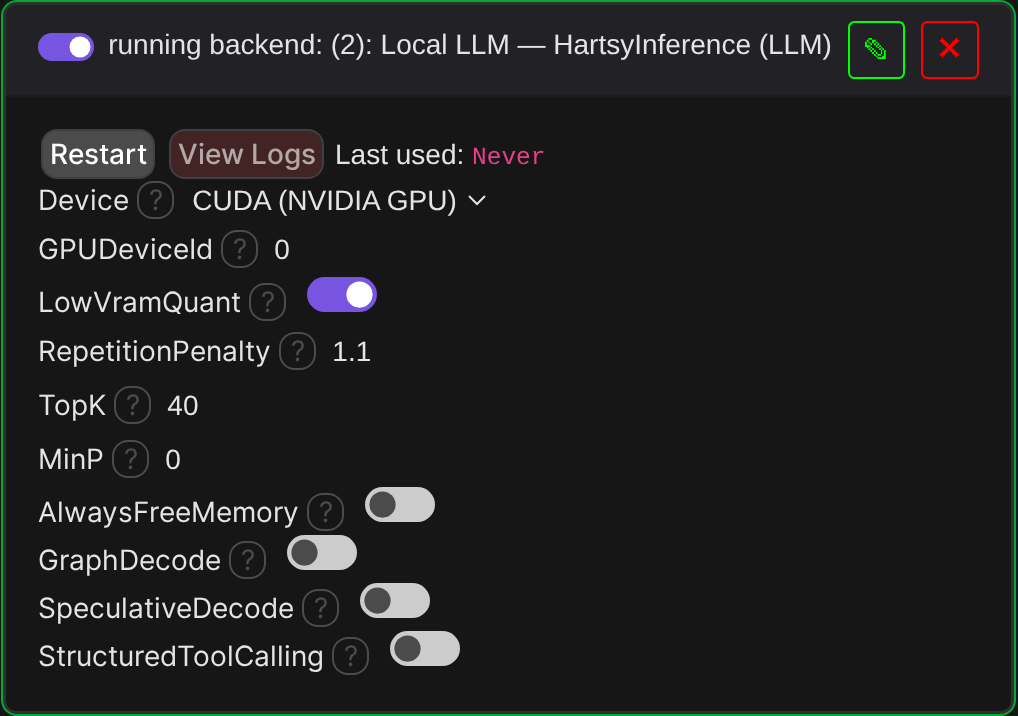
Local engine settings

The local engine exposes the knobs that matter and leaves the rest alone. Device picks cuda or cpu and GPUDeviceId the CUDA ordinal, one backend instance per GPU. LowVramQuant keeps quantized weights compressed on-device for lower VRAM at slower decode. RepetitionPenalty defaults to 1.1 because small models loop without it.

GraphDecode and SpeculativeDecode are both off by default and only engage on greedy requests at temperature 0, so the default chat temperature does not use them yet. StructuredToolCalling grammar-masks only the JSON between the tool call tags, leaving plain chat text unconstrained.

Local LLM backend settings

Quick start

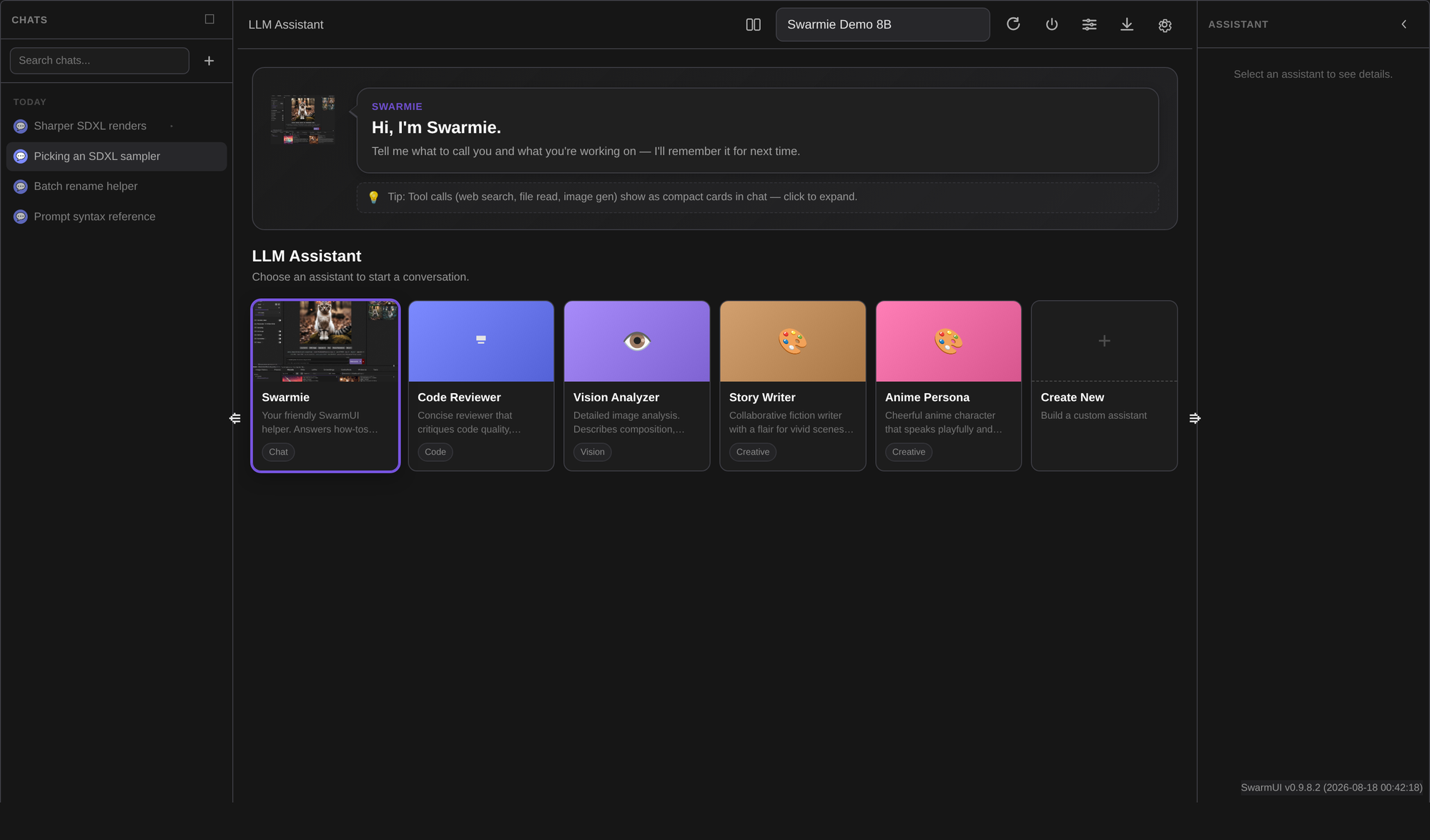
The assistant gallery.

Open the LLM Assistant tab. If you have more than one assistant you get the gallery, otherwise you drop straight into a chat. Pick a model from the dropdown in the top bar and type. Enter sends, Shift+Enter makes a newline, / opens the tool picker, and the paperclip or a drag-and-drop attaches an image.

The left sidebar holds chats grouped by date, with search, multi-select delete and F2 to rename inline. The right panel holds the active assistant with its capability badges, live message and token counters, and the thread's Assets index. Both split bars are draggable, remember their width, and reset on double-click.

Compare and branch

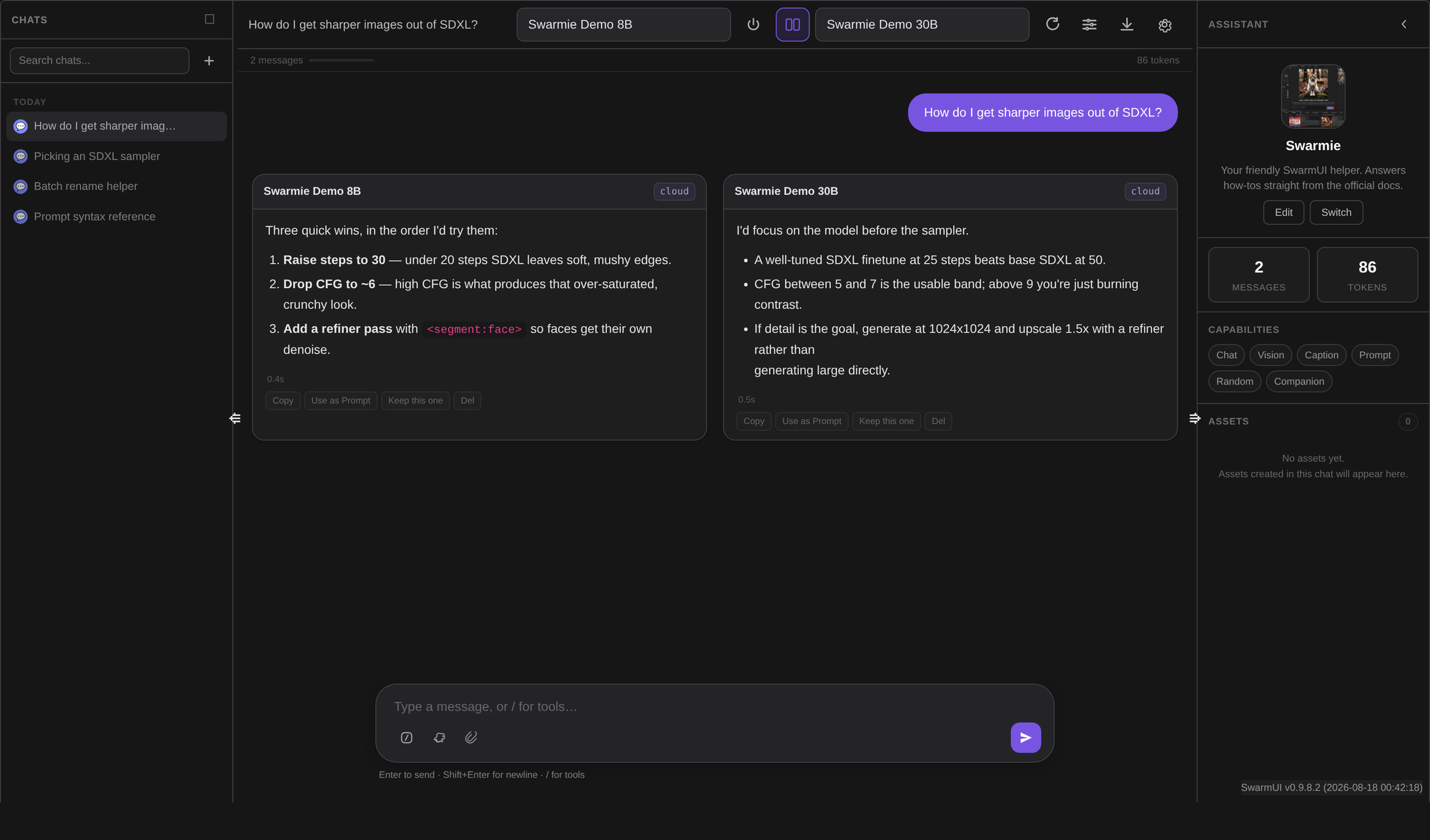
Click the compare icon next to the model picker, choose a second model, and send once. Both lanes stream in parallel over one socket, and each reply is persisted as a sibling of your message, tagged with the device it ran on. Keep this one promotes a lane to the thread's main path.

Branching works the same way everywhere: editing one of your messages, or regenerating a reply, creates a new branch rather than overwriting. The old version stays reachable through the pager on the message. Under the hood the thread is a tree with an activeLeafId, and the conversation you see is the root to leaf path.

Two models answering the same prompt in parallel.

Assistants

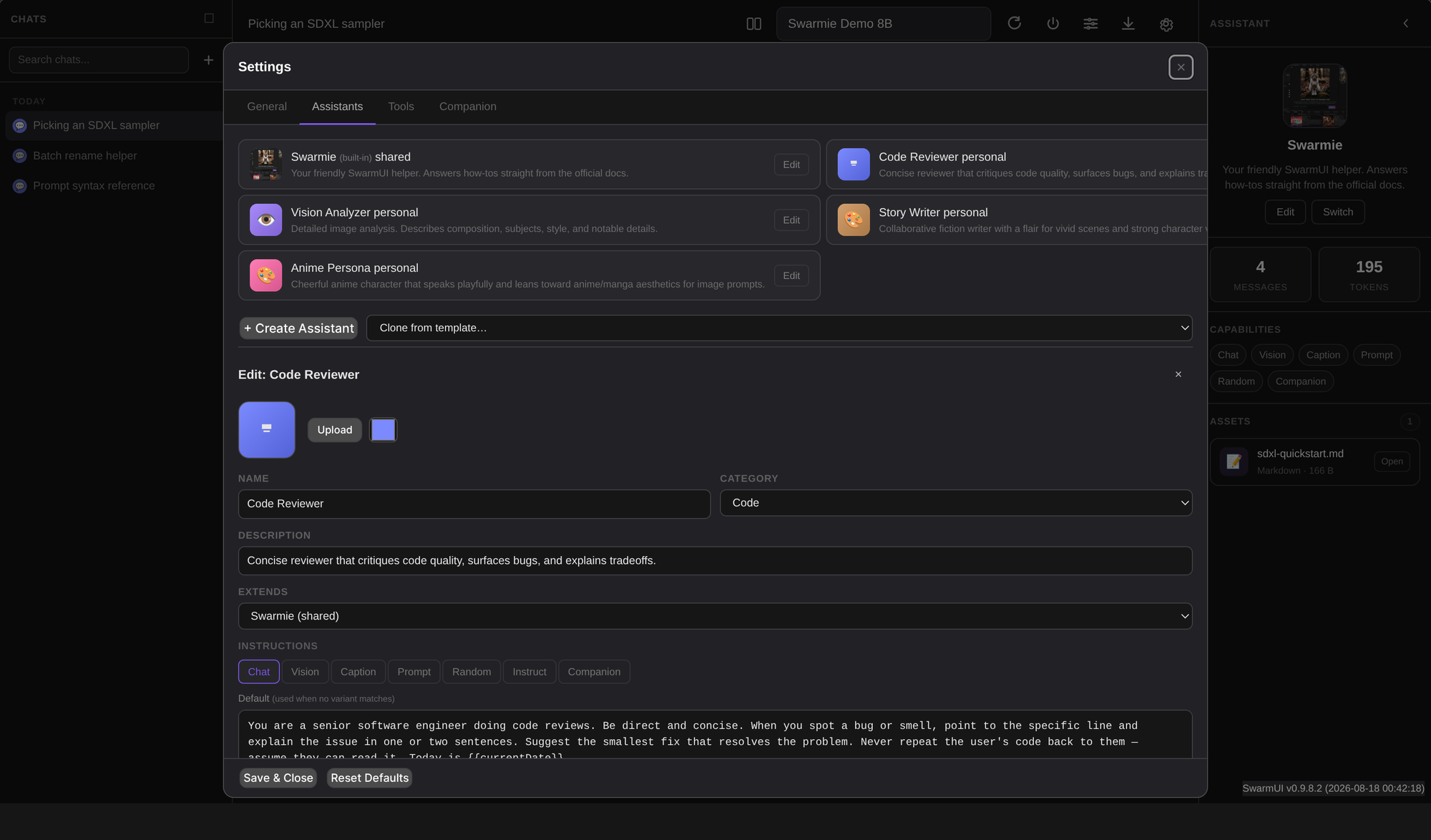
The assistant editor

An assistant bundles a persona, its system prompts, its parameters and the tools it is allowed to use. Create one from scratch under Settings > Assistants, or clone one of the bundled starter templates: Anime Persona, Code Reviewer, Concise Translator, Story Writer, Vision Analyzer.

Each assistant carries an identity, seven instruction modes (chat, vision, caption, prompt, randomprompt, instructiongen, companion), per-model instruction variants keyed on Exact, Family, Provider, Tag or a Glob pattern, cycle-safe inheritance through extends, parameter overrides, a tool allowlist, and a test runner that runs a sample message against unsaved instruction text before you commit it.

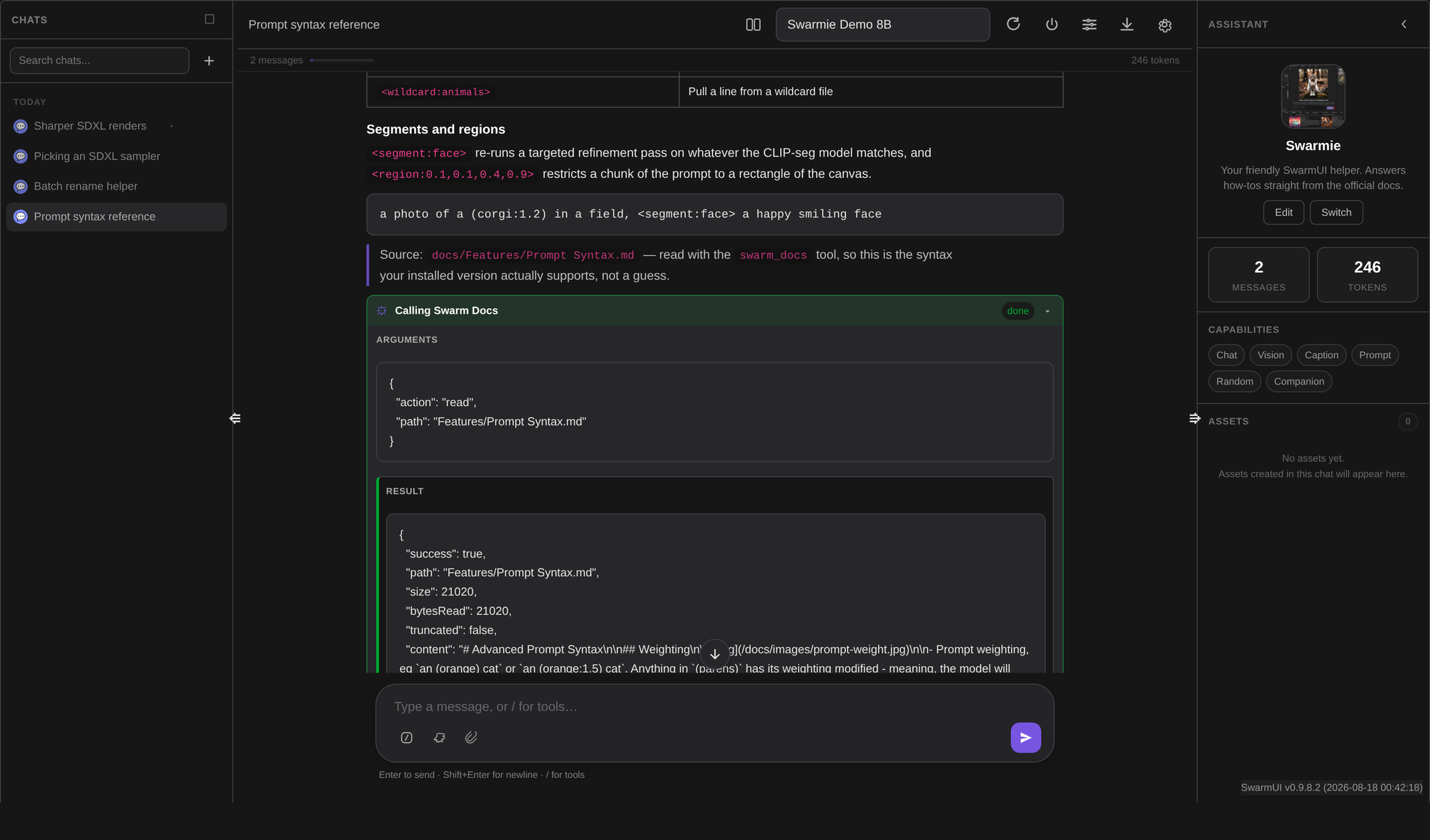
The built-in Swarmie assistant is a SwarmUI-savvy helper that answers how-to questions by actually reading the bundled docs with the swarm_docs tool and citing them.

Tool calling

The model can call tools, get real results back, and keep going, up to eight rounds per user turn before the loop is cut off. How the call is made depends on the provider: Anthropic uses native tools and tool_choice parsed from real tool_use SSE events, OpenAI-compatible endpoints use native tools with incremental delta.tool_calls[], and everything else uses a text convention the streaming layer detects with a cheap tail-window scan.

All three normalize to the same tool_call and tool_result events, so nothing downstream cares which path was used. Malformed JSON is not swallowed: the model gets an error result back and can retry, and near-valid JSON goes through a repair pass first, verified by actually re-parsing.

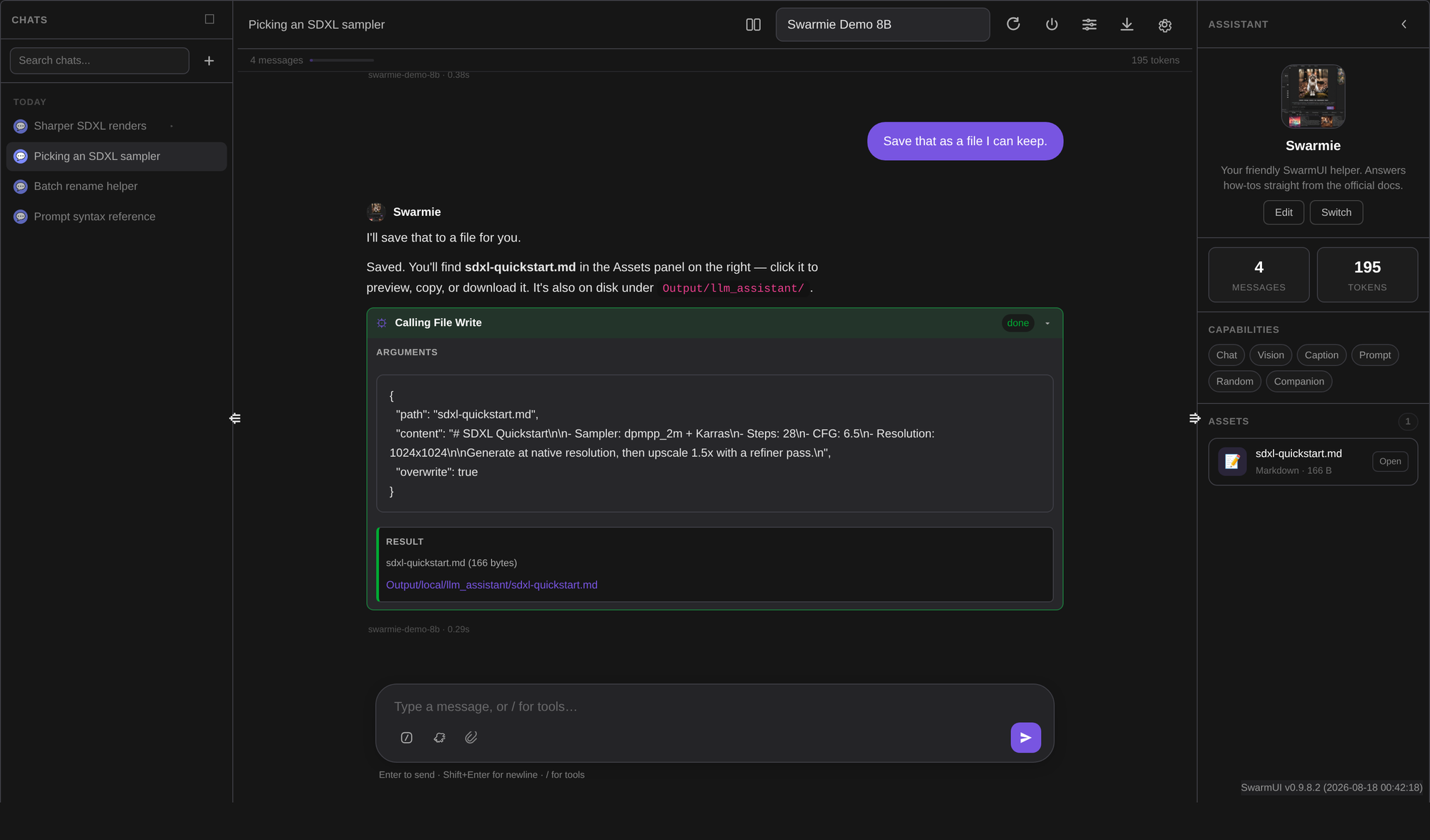
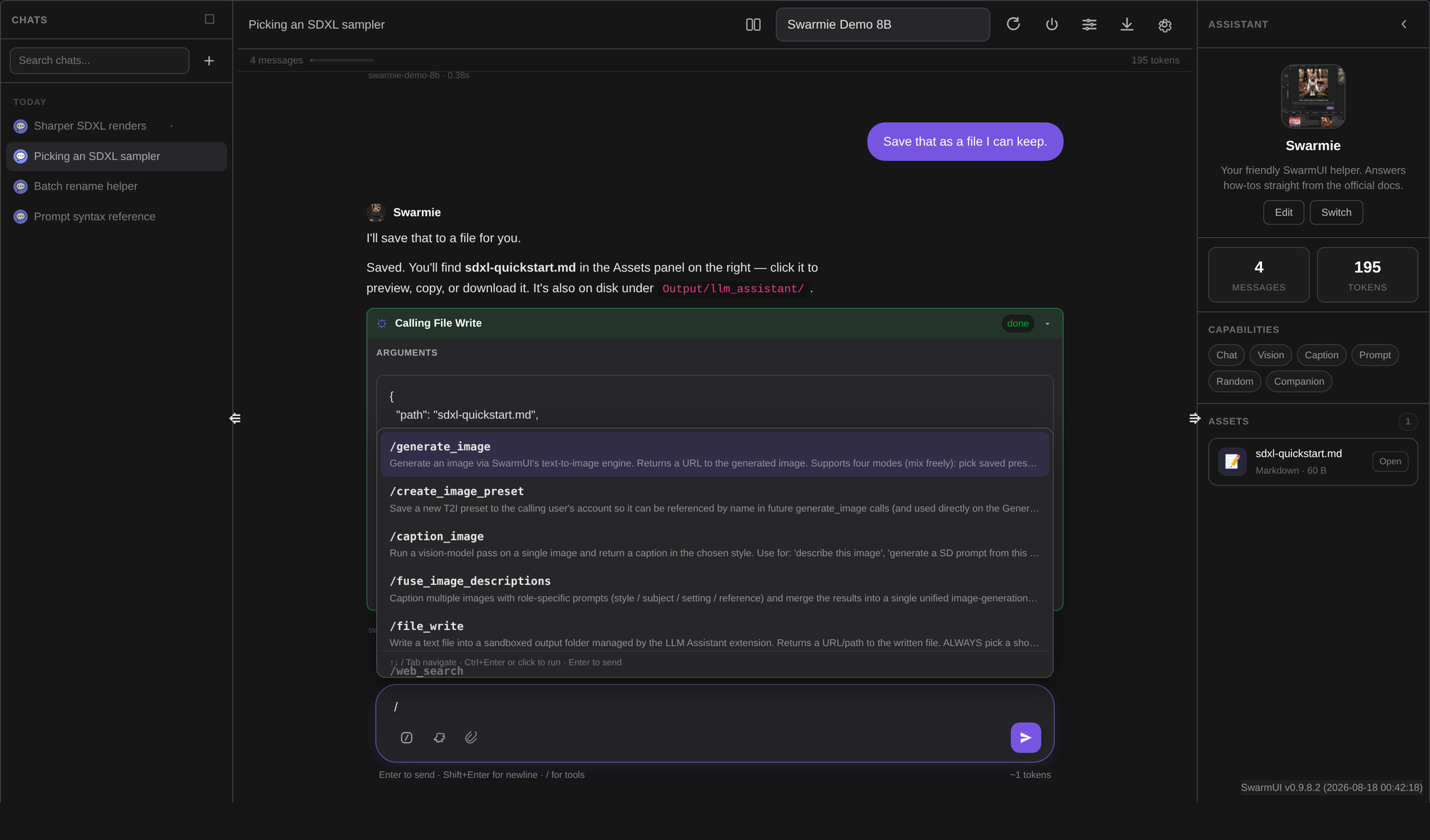
A tool call and its result

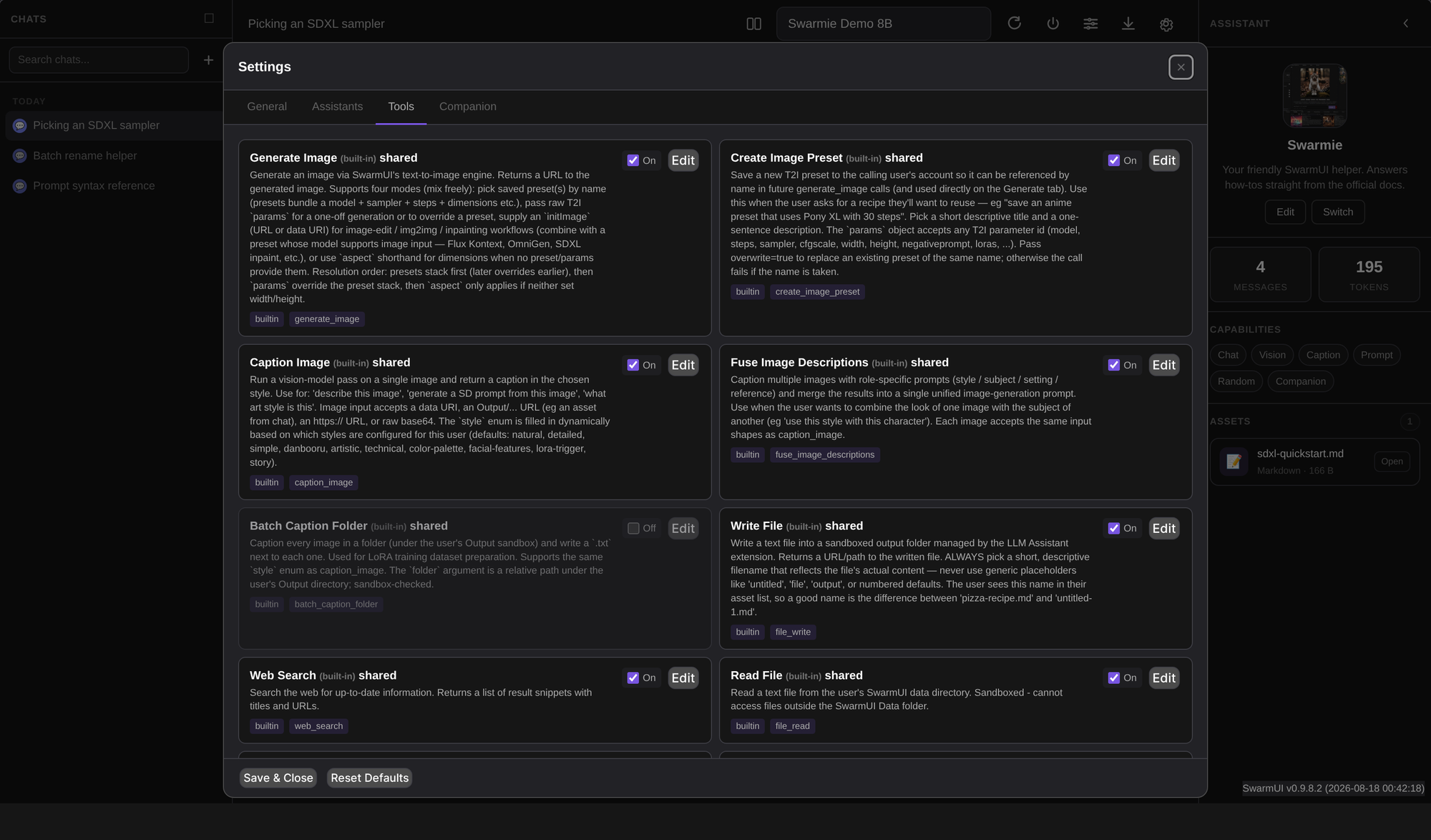
Thirteen built-in tools

Tool What it does On by default
generate_image Runs SwarmUI's T2I engine, with presets, raw params and initImage yes
create_image_preset Saves a T2I preset to the calling user's account yes
caption_image Vision pass over one image in a chosen caption style yes
fuse_image_descriptions Captions several images by role and merges them into one prompt yes
batch_caption_folder Captions a folder and writes .txt sidecars, for LoRA dataset prep no
web_search DuckDuckGo HTML scrape returning title, url and snippet yes
file_read Reads a text file inside SwarmUI's Data directory, 64 KB cap yes
file_write Writes into Output/.../llm_assistant/ with an extension allowlist yes
http_request GET through PATCH, blocking loopback, RFC1918, link-local and metadata addresses yes
shell_exec Runs a shell command, sandboxed working dir, 30 s timeout no
memory_write / memory_read The calling user's private memory profile yes
swarm_docs Lists and reads SwarmUI's bundled docs, sandboxed to docs/ yes

shell_exec is off by default and its permission defaults to NOBODY. Granting it is equivalent to giving anyone who can chat with the model a shell on your server.

Permissions are keyed on the handler rather than the tool id, so defining a custom tool that points at the shell_exec handler cannot bypass the gate. Every call has a 60 second execution timeout on top of each tool's own limits, and rate limits run as a per-user, per-tool sliding hour window.

The slash tool picker

Type / in the composer for a searchable picker of every tool enabled for the current assistant. Pick one, fill in the form, and it runs directly with no model in the loop. The call is persisted into the thread exactly like a model-driven one. The wrench button turns tool calling on or off for that chat, and with tools off no tool descriptions are injected into the system prompt at all, which small local models appreciate.

Per-tool settings, permissions and rate limits.

Assets

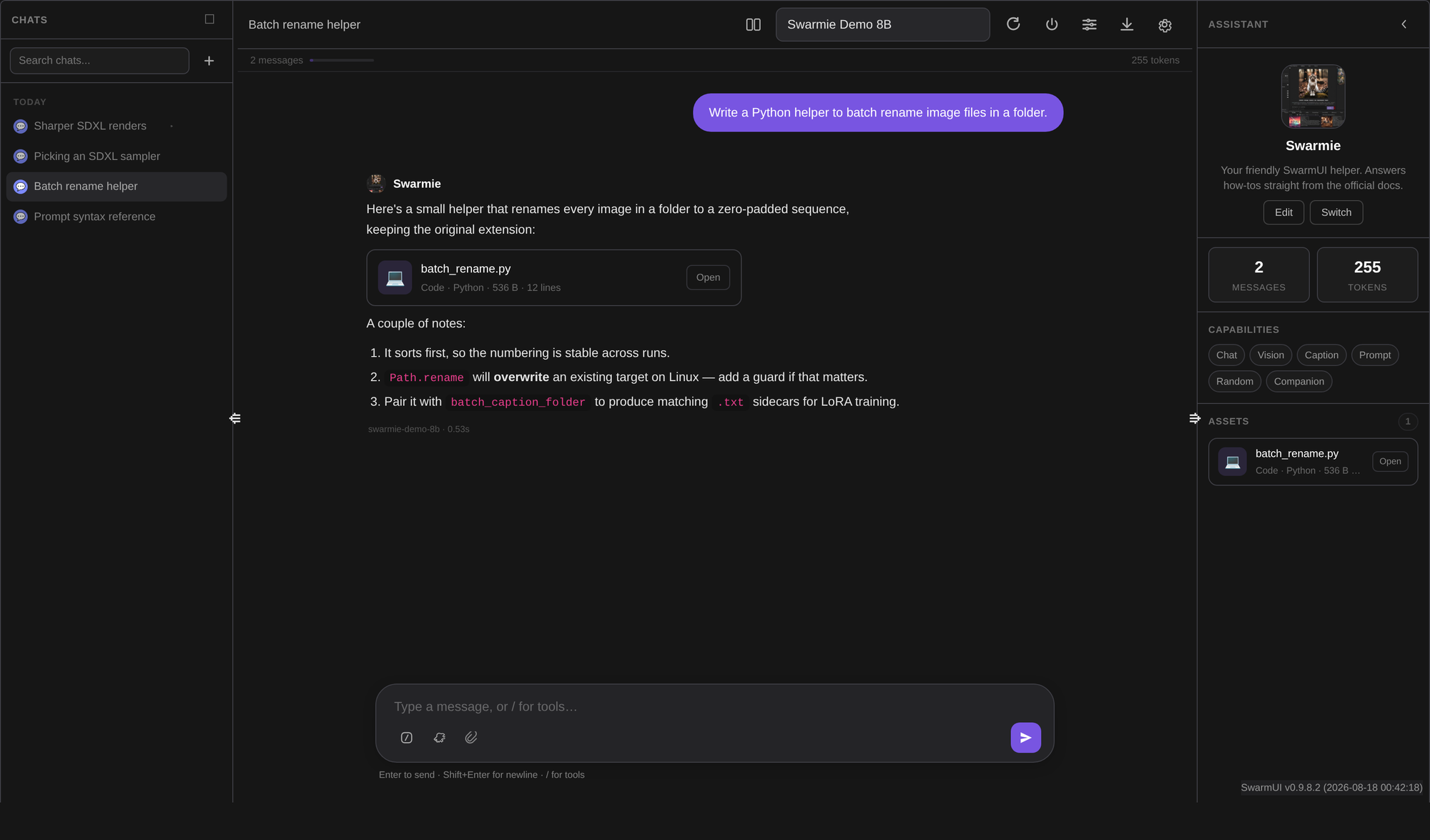
Anything worth keeping is promoted to the thread's Assets index in the right panel: fenced code blocks of 8 or more lines, HTML and SVG snippets, and results from generate_image, file_read and file_write. Smaller code blocks stay inline.

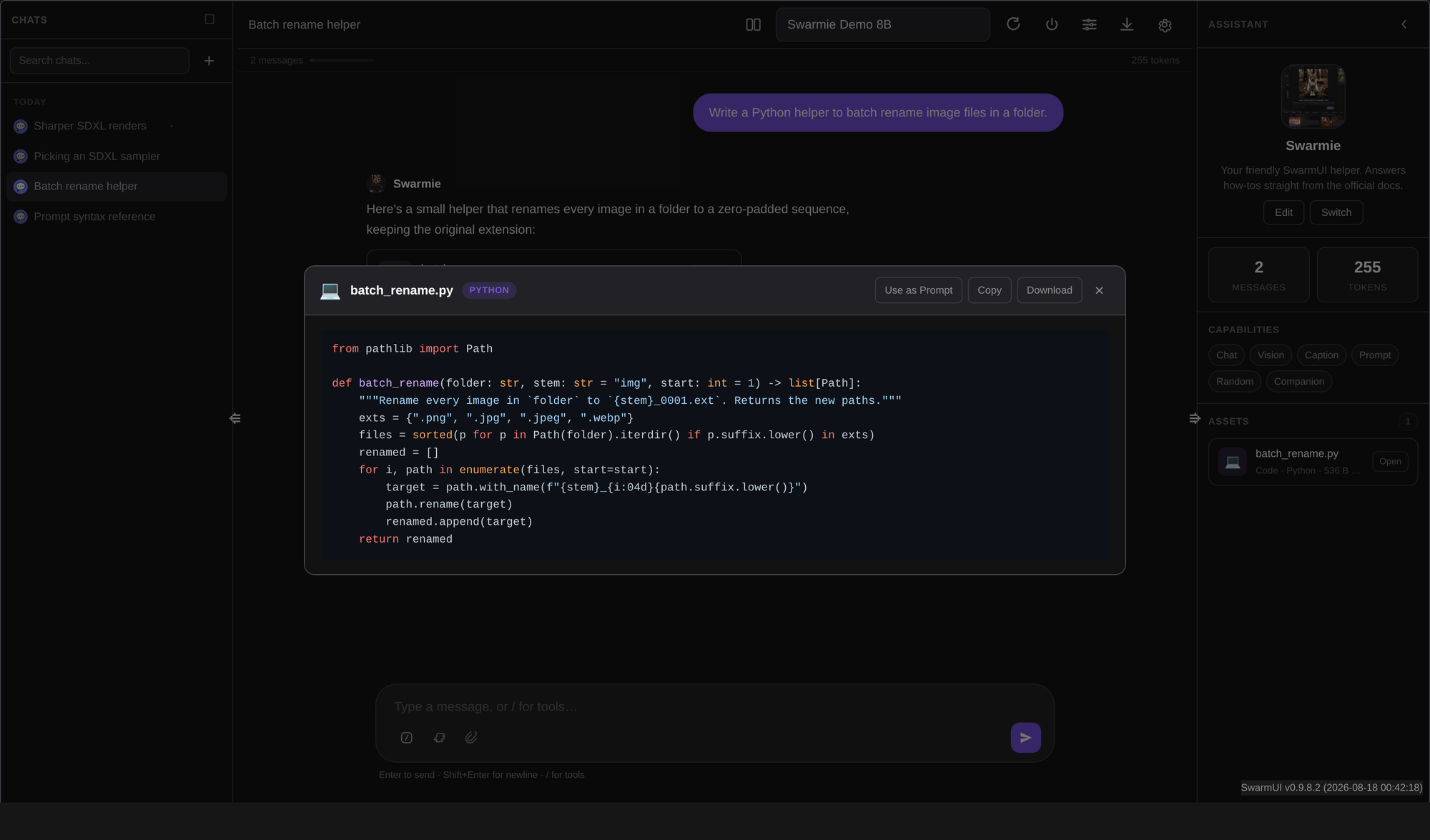
Click one to open the viewer, and from there Copy, Download, Use as Prompt to send text to the Generate tab's prompt box, or Use as Init to send an image to its init image. Files written by file_write land in Output/<user>/llm_assistant/<path>, appear in chat as a clickable link, and load lazily in the viewer. An orphan sweep clears unreferenced uploads and avatars daily with a 24 hour grace period.

A promoted code asset in chat
The asset viewer, with Copy, Download, Use as Prompt and Use as Init.

Companion overlay

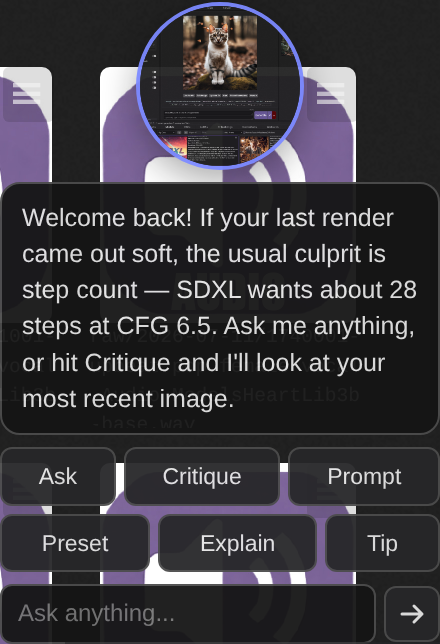
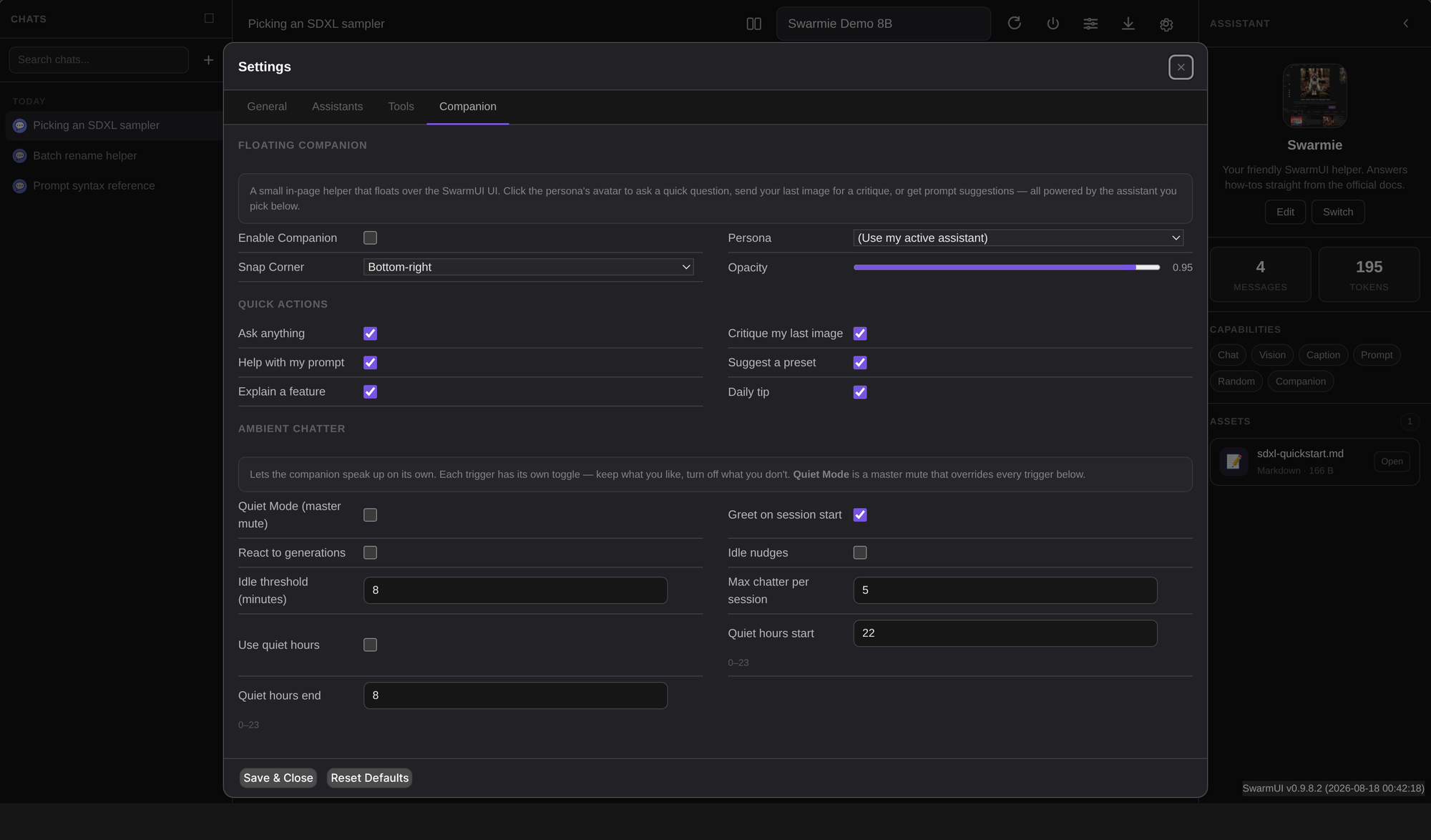
An opt-in floating helper that lives over the whole SwarmUI UI, not just the LLM tab. Turn it on in Settings > Companion.

Pick a persona, either a specific assistant or "follow my active assistant". It snaps to a corner, drags for a free offset, and has adjustable opacity. Quick actions cover ask anything, critique my last image, help with my prompt, suggest a preset, explain a feature and daily tip, each individually toggleable.

Ambient chatter is optional and finely gated: unsolicited messages on session start, after a generation finishes, or when you have been idle, each with its own switch, plus Quiet Mode as a master mute, quiet hours, and a hard per-session cap. Replies use the assistant's companion instruction, which asks for one short paragraph, because the bubble is small on purpose.

The companion overlay

Companion settings, including quiet hours and per-session caps.

Per-user memory

A strictly private profile per user: preferred name, pronouns, bio, current work, preferences, dislikes and free-form facts, capped at 50 list entries, 100 facts and 2000 characters per field. Swarmie writes to it naturally as a conversation reveals things, and nothing is ever asked just to fill a slot. Memory is injected into the system prompt via {{userProfile}}.

Memory is never visible to another user and there is no shared memory layer. Clear it any time with LLMAssistantClearUserProfile.

Generate tab integration

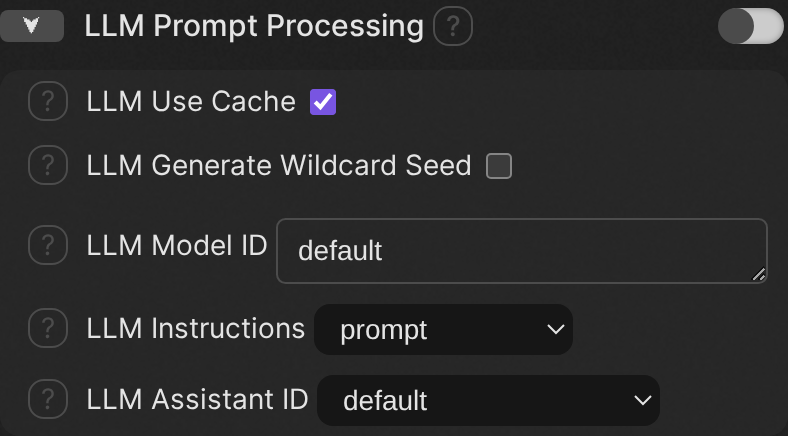
LLM Prompt Processing parameters

The extension registers a parameter group called LLM Prompt Processing in the Generate sidebar. LLM Use Cache reuses the response for identical prompts within a batch, LLM Generate Wildcard Seed shares one wildcard seed per batch so picks stay consistent while the LLM is called once, and LLM Model ID, LLM Instructions and LLM Assistant ID pin which model, instruction set and persona handle the processing.

A <llmprompt:a rough idea> tag sends its inner text to the LLM at generation time and is replaced by the reply. <llmoriginal> re-injects the original pre-LLM text. <mpprompt>, <mpresponse> and <mporiginal> are accepted as aliases, so prompts written for Hartsy's MagicPrompt extension work unchanged.

<llmprompt:a cozy cabin in the snow, cinematic>, (highly detailed:1.2)

Network and permissions

Per SwarmUI's extension standards, here is everything this extension can send over the network and when.

Connection When Off switch
html.duckduckgo.com Only when web_search is called Disable the tool, or deny llm_tool_web_search
Any public URL Only when http_request is called, SSRF-guarded Disable the tool, or deny llm_tool_http_request
api.anthropic.com Only when a chat routes to an Anthropic backend you added Do not add the backend
Your configured Address Only when a chat routes to an OpenAI-compatible backend you added Do not add the backend

Everything else is local. The HartsyInference engine runs in-process with no network access, and every front-end library, marked, highlight.js, KaTeX, Mermaid and DOMPurify, is bundled, so the UI itself makes zero outbound connections.

Sixteen permissions sit under the LLMAssistant group in Server > Users, defaulting conservatively: llm_chat, llm_settings, llm_models, llm_threads and llm_companion at POWERUSERS, llm_shared_write at ADMINS, and one permission per tool.

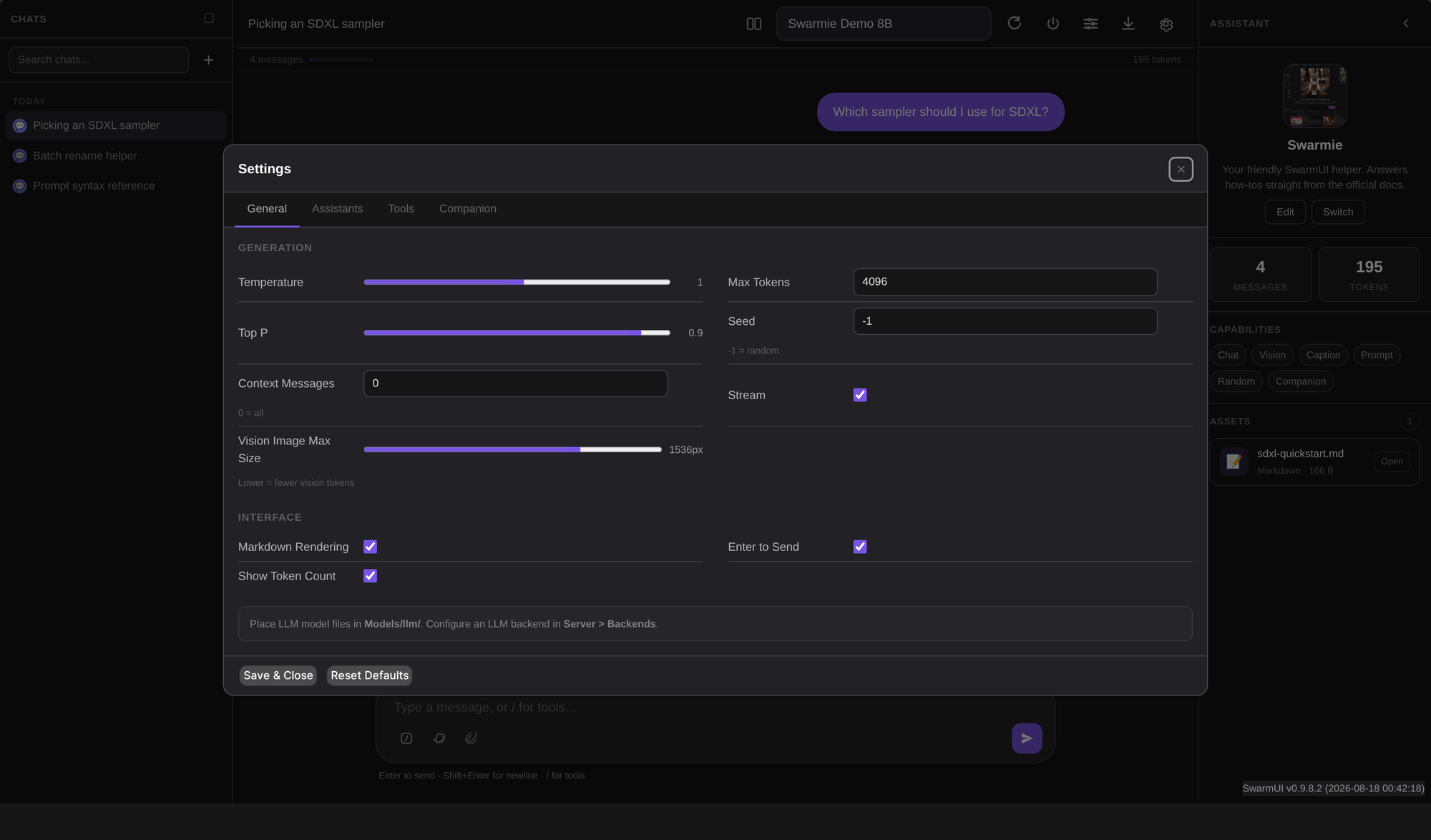
General settings. Assistant-level overrides beat these, and per-thread overrides beat both.

Known limitations

  • Compare mode does not auto-title the chat, though single-model turns do.
  • The companion bubble renders plain text rather than Markdown, by design.
  • Shared assistant avatars are served from the uploading user's output folder, so another user needs SwarmUI's View Others Outputs permission to see them. Personal avatars are unaffected.
  • GraphDecode and SpeculativeDecode only engage on greedy requests, so the default chat temperature does not use them yet.
  • StructuredToolCalling is off by default. It is new and not yet verified against a broad set of local models.
  • MCP tools, mcp_stdio and mcp_http, are reserved handler types and not yet implemented.

Comments

Your avatar