MagicPrompt: LLM prompt writing inside SwarmUI
Tool

MagicPrompt: LLM prompt writing inside SwarmUI

Hartsy 2.4
comments, jump to the thread 55 views

Supported platforms

  • Windows
  • Linux
  • macOS

Features

  • Generate and rewrite prompts for text-to-image models
  • Local Ollama and OpenAI-compatible, plus OpenAI, Anthropic, OpenRouter, Grok and Groq
  • A button in the Generate tab and a dedicated MagicPrompt tab
  • Vision support with upload, caption and image-as-context modes
  • Custom AI instructions mapped to specific features
  • Prompt tag processing with smart caching for batches

System requirements

LLM
A local Ollama or OpenAI-compatible server, or an API key for a hosted provider
SwarmUI
Installed on your system
HartsyCore
Remove it if installed. It was retired to comply with the extension guidelines

Links

License

License
MIT

MagicPrompt gives SwarmUI a direct, simple way to write text prompts for image models using your free local LLM or a paid API. It adds two buttons above the prompt box in the Generate tab and a dedicated MagicPrompt tab with full chat and vision.

To use third party APIs you need a key from OpenAI, OpenRouter or Anthropic. Those cost money per request, but they save VRAM you would otherwise spend on a local model.
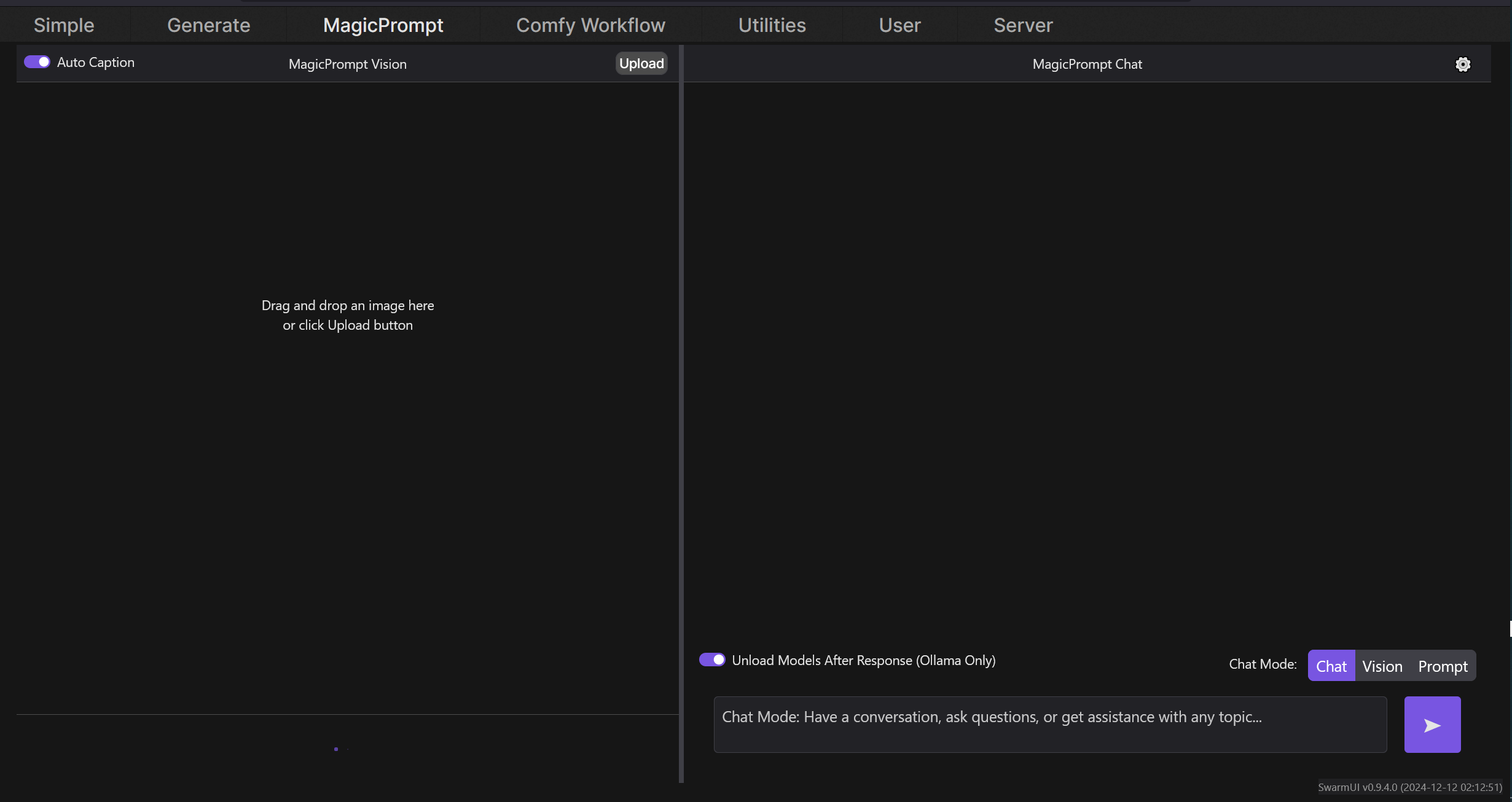

The MagicPrompt tab, with the Vision and Chat sections side by side.

Features

  • Generate and rewrite prompts for text-to-image models.
  • Supports local Ollama, OpenAI-compatible APIs, OpenRouter, OpenAI, Anthropic, Grok and Groq.
  • Vision support: upload an image, generate captions, and use images as context for prompts.
  • Add custom AI instructions and map them to specific features.
  • Automatically pass your prompt to an LLM during generation with prompt tags.
  • Compatible with other SwarmUI extensions.

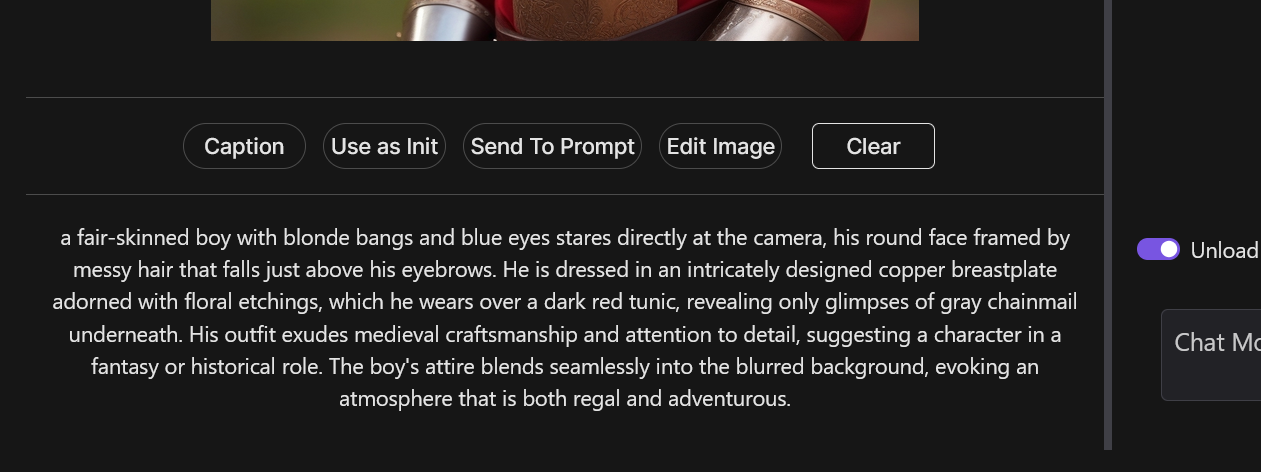
Vision has two modes with separate system instructions. Vision mode answers questions about the image or gives a detailed analysis. Caption mode writes a detailed caption. Either way you can then use the image as an init image, send its description to the prompt box, or clear it.

Installing

Open Server > Extensions, find the extension in the list, press install, let it download, and follow the prompts to restart Swarm. To install by hand, close SwarmUI, clone the repo into SwarmUI/src/Extensions, and run update-windows.bat or update-linuxmac.sh to recompile. That only needs to be done on first install.

After the restart you have a MagicPrompt tab and two new buttons in the Generate tab above the prompt box.

The extension row in Server > Extensions.

Configuration

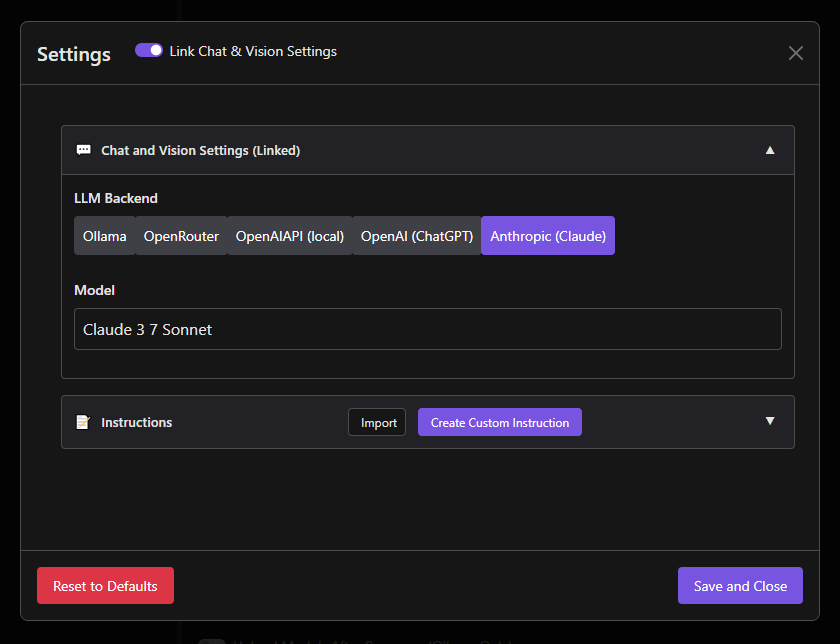
The settings modal

Open the MagicPrompt tab and press the settings button. If you are using Ollama on the default localhost and port, you can start simply by selecting a model for both the chat and vision settings.

Chat settings cover the backend, the model, and the base URL of your LLM API server, for example http://localhost:11434 for a local Ollama. Vision settings mirror them for the vision model. Chat and vision settings are linked by default; toggle that off in settings if you want different models for each.

Looking for a free LLM API? MagicPrompt supports OpenRouter, which has several free models and does not require payment details to sign up. Rate limits apply.

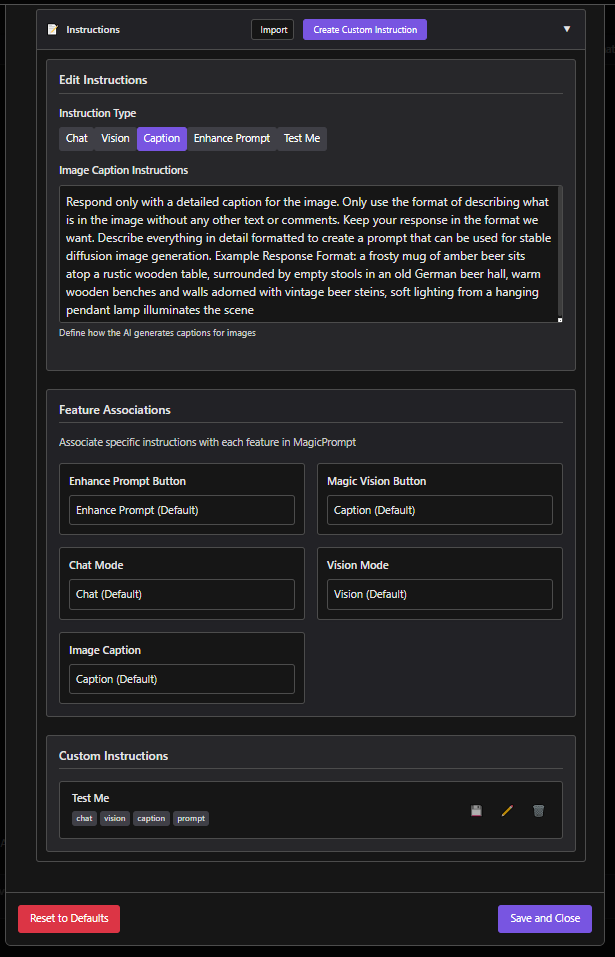
The instruction system

Four built-in instruction types ship with the extension: Chat controls how the AI behaves in conversation, Vision determines how it analyzes and describes images, Image Caption guides caption generation, and Text-to-Image Prompt defines how it enhances and formats your prompts.

You can create your own from the Instructions tab: give it a title, a description and the instruction content, assign it to the relevant categories, and optionally use AI assistance to help write it. The Features tab then connects specific features to instruction sets, so you can choose which set the Enhance Prompt button uses. Custom instructions export and import as JSON, so they can be shared.

The Instructions tab, with built-in and custom sets.

In the Generate tab

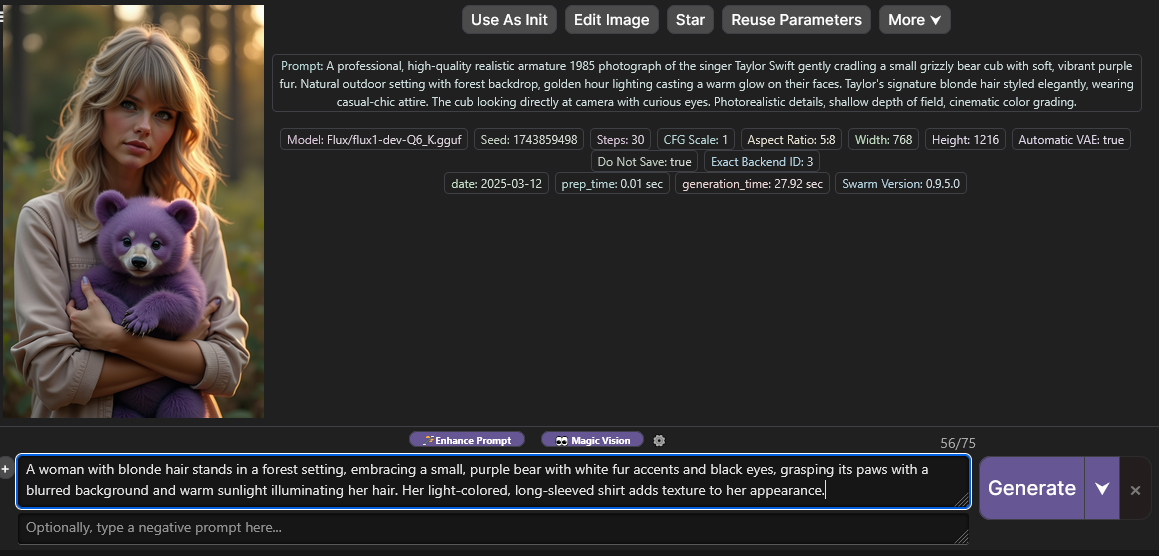
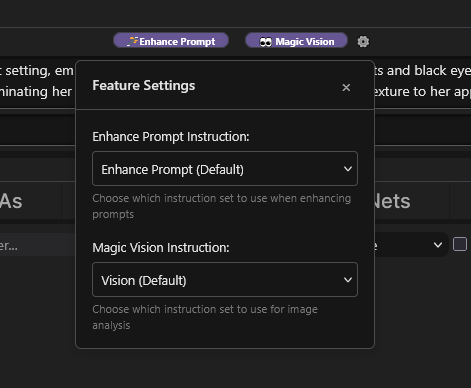
Type your prompt in the Generate tab and press Enhance Prompt to rewrite it in place based on your configured settings. With an image selected, Magic Vision captions it, giving you a prompt for a similar image, subject to your caption instructions. The cog icon next to Magic Vision swaps which system instruction is used, between the defaults and your own.

Enhance Prompt and Magic Vision, above the prompt box.
The mini settings panel behind the cog icon.

The MagicPrompt tab

The vision action buttons.

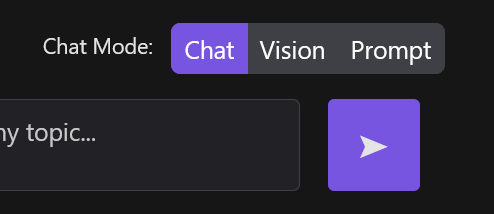
The MagicPrompt tab splits into Vision and Chat. Choose between Prompt, Chat and Vision modes with the radio buttons at the top; this switches which instructions are used, and vision mode uses the selected vision model. The chat has no memory and is not meant to be a comprehensive chat app.

On the vision side, upload an image and, with auto caption enabled, the caption call starts immediately. From there you can caption, use as init, send to prompt, edit, or clear.

Mode selection in the MagicPrompt tab.

Generate tab integration

MagicPrompt integrates with SwarmUI's prompt parsing system, so it works during batch generation rather than only interactively. A Magic Prompt Auto Enable parameter group appears in the sidebar once installed.

  • <mpprompt:your prompt here> sends only what is inside the tag to your LLM during generation, and the response replaces the tag.
  • <mporiginal> adds your original, unmodified tags back into the prompt, useful when your model works better with a tag-based prompt.
  • MP Use Cache caches LLM responses for identical prompts, which cuts API cost during batch generation.
  • MP Generate Wildcard Seed generates new wildcard seeds per batch. If your prompts contain <wildcard> or <wc> tags and you run a batch, the same wildcard selections are chosen, so the prompts match and the LLM is called once per batch.
  • MP Model ID and MP Instructions choose the model and the custom instructions per batch.

Known working OpenAI-compatible backends

These have been reported to work with the MagicPrompt "OpenAIAPI (LOCAL)" backend. The URLs are the common defaults; adjust for your environment.

Name Base URL Type Notes
Groq https://api.groq.com/openai API Very fast, free tier available, supports Llama, Mixtral and Gemma variants
KoboldCPP http://localhost:5001 Local Start with --api to expose OpenAI-compatible /v1 endpoints
Oobabooga http://127.0.0.1:5000/v1 Local Requires the OpenAI API extension enabled
LM Studio http://localhost:1234/v1 Local Enable the local server to use OpenAI-compatible endpoints

For paid APIs, set your key under Users > API Keys in SwarmUI.

Troubleshooting

Nothing happens when I press Enhance Prompt

Check the logs for errors or warnings, and confirm the extension is configured. Did you add your API URL or your keys?

My LLM service is not Ollama and does not work

Support outside Ollama is not guaranteed. You may need to modify the code for your service, or open a feature request to have it added.

Where can I get help

Ask in the SwarmUI Discord help forum, open an issue on GitHub, or join the Hartsy Discord community.

Comments

Your avatar